Find your way around
What's in the sidebar, the top bar and the strip along the bottom, plus the Getting started checklist and the two-minute tour.
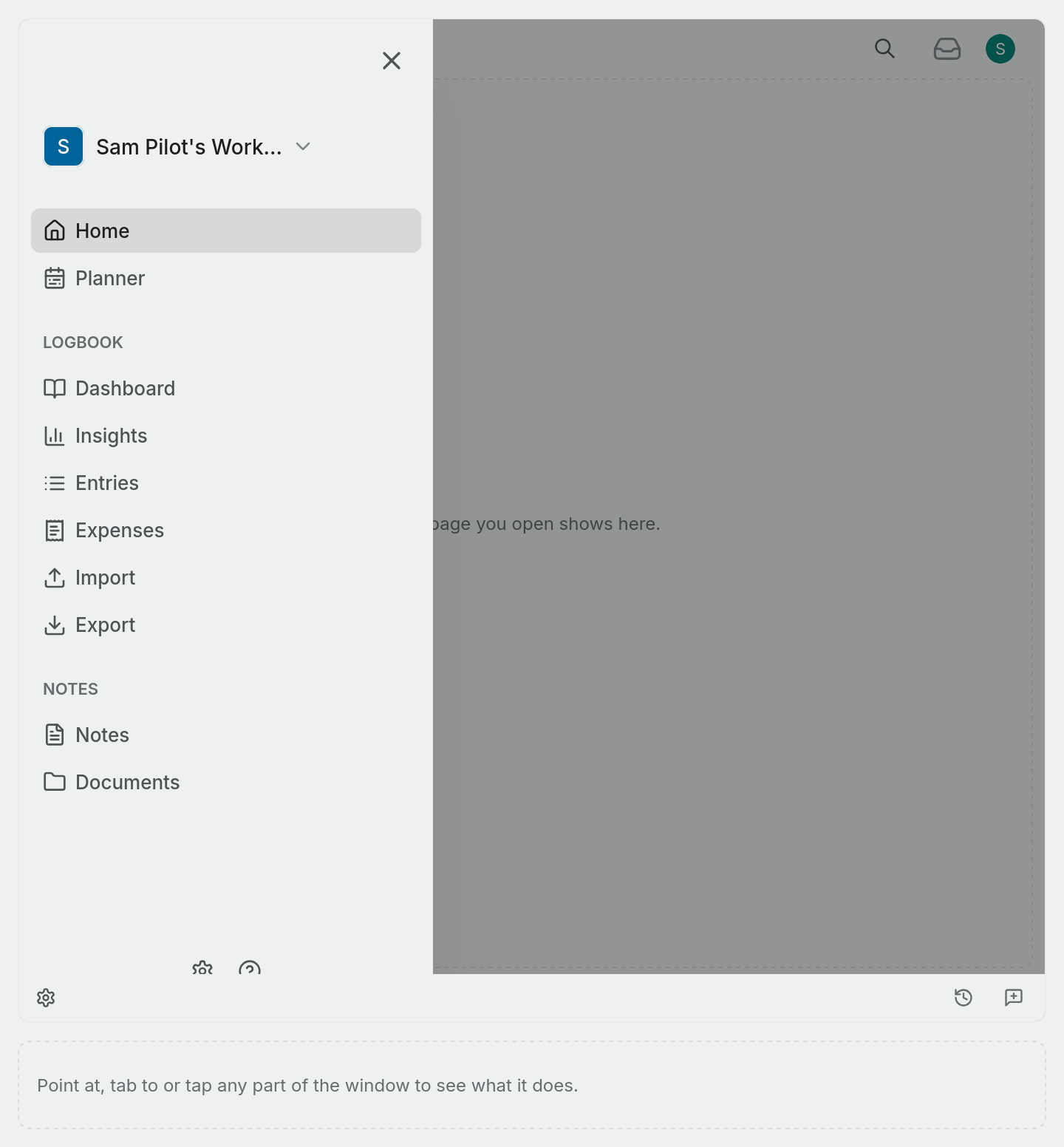
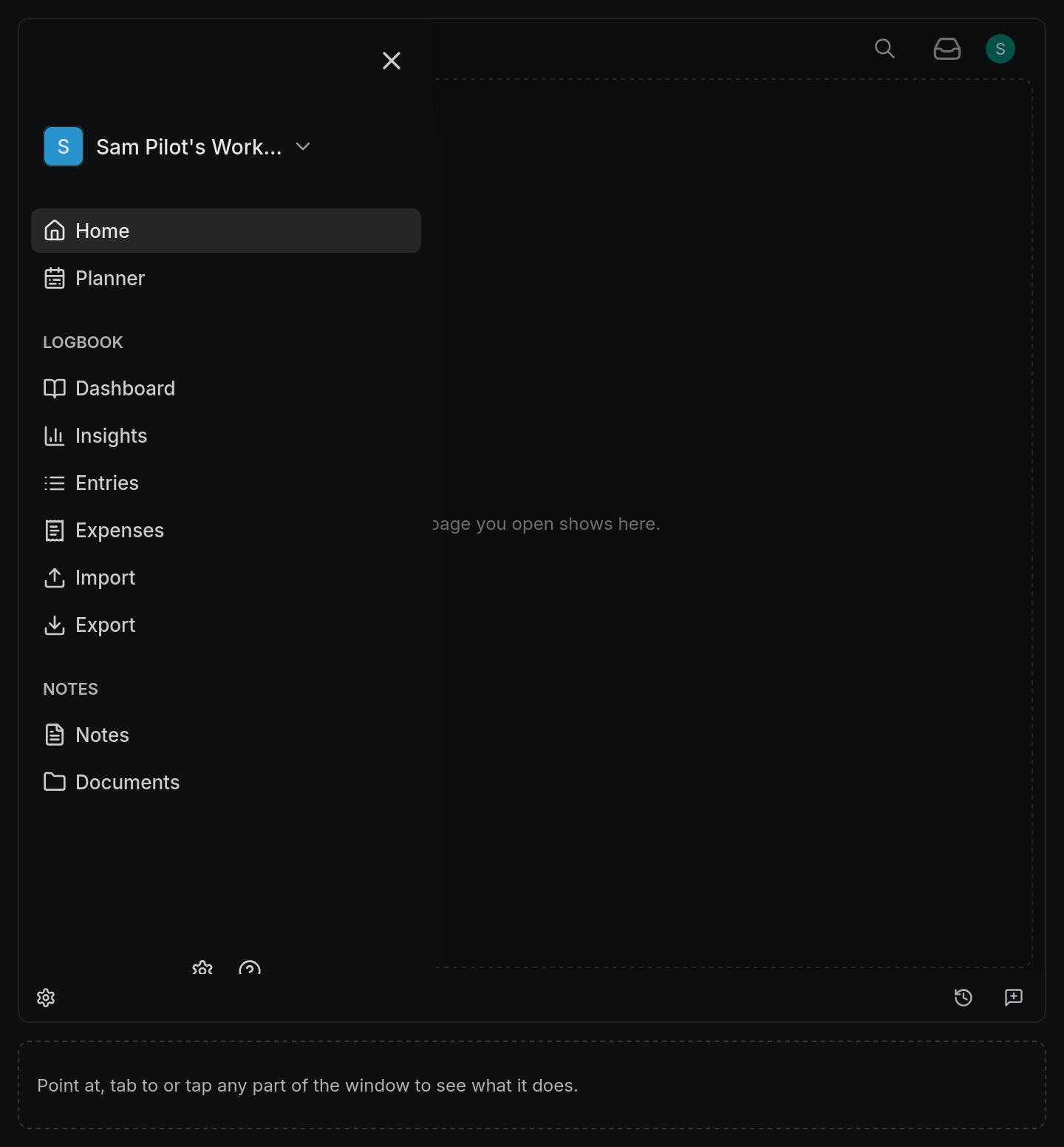
Every page in Pilot Lab sits in the same frame: a sidebar on the left, a bar across the top and a thin strip along the bottom. The page itself fills the middle. Try the example below, then read on for the detail.
The sidebar
The sidebar is how you move between the main parts of your logbook.
- Home is where you land. Before your first flight is in, it offers three ways to start: Bring your logbook in (from a logbook app or a spreadsheet), Scan your paper logbook and Add one flight. After that it shows a greeting. Either way you get an ask bar for the assistant and quick links to Logbook, Aircraft, Planned, Notes, Documents and Import.
- Planner is a calendar of flights you're planning. A planned flight turns into a logbook entry once you've flown it. See Plan a flight in the Planner.
Under Logbook:
- Dashboard shows your totals and widgets. Totals are always calculated from your entries, never typed in.
- Insights charts your flying over time. See Insights.
- Entries is the list of every flight you've logged, and where you'll usually select Add flight.
- Expenses tracks private flying costs linked to your logbook.
- Import brings in an existing logbook from a spreadsheet or photographed pages.
- Export creates a copy of your logbook to download or print.
Under Notes:
- Notes holds briefings, debriefs and anything else you want to keep.
- Documents stores your licence, medical and other certificates.
If you're an instructor, a Sign-off queue also appears under Logbook. If a club has shared a debrief with you, Debriefs appears there too. Flying club workspaces have their own sidebar, described in Flying clubs.
At the very top of the sidebar is the name of your workspace. Select it to open the workspace menu, which has Settings for the workspace and Sign out.
To give the page more room, select the panel icon at the bottom left, or press [. The sidebar shrinks to icons, and hovering an icon shows its name.
The top bar
From left to right:
- Back and forward arrows move through the pages you've visited, like a browser's.
- Tabs let you keep more than one page open. Select + (New tab) to open the current page in a new tab.
- Search commands (the magnifying glass, or
Ctrl+K,⌘+Kon a Mac) jumps to any page or action by name. - Inbox holds your notifications. A red dot means there's something new.
- Your account menu (your picture or initials) shows your plan and shortcuts to your Licences and ratings, Medicals and Flight reviews. Below those are Your profile, Notifications, Security, Preferences, Invite a pilot, Help centre and Sign out. Workspace admins also see Plan and billing.
The bottom strip
On the left are the sidebar toggle and Help (the question mark). On the right are your conversations with the Pilot Lab assistant, with Chat history and New chat buttons. Every workspace gets a monthly allowance of assistant questions, and Pro raises it. See The AI assistant and your allowance.
Help contains:
- Docs, which opens this help centre.
- Contact Us, which sends a message to our support team. See How do I contact support?.
- Getting started, which reopens the checklist below.
- Take the tour, a two-minute walk through the main screens.
- Keyboard Shortcuts. See Keyboard shortcuts.
- Settings, the same workspace settings as the workspace menu.
- What's New, the latest changes and news from Pilot Lab, with a link to all release notes.
The Getting started checklist
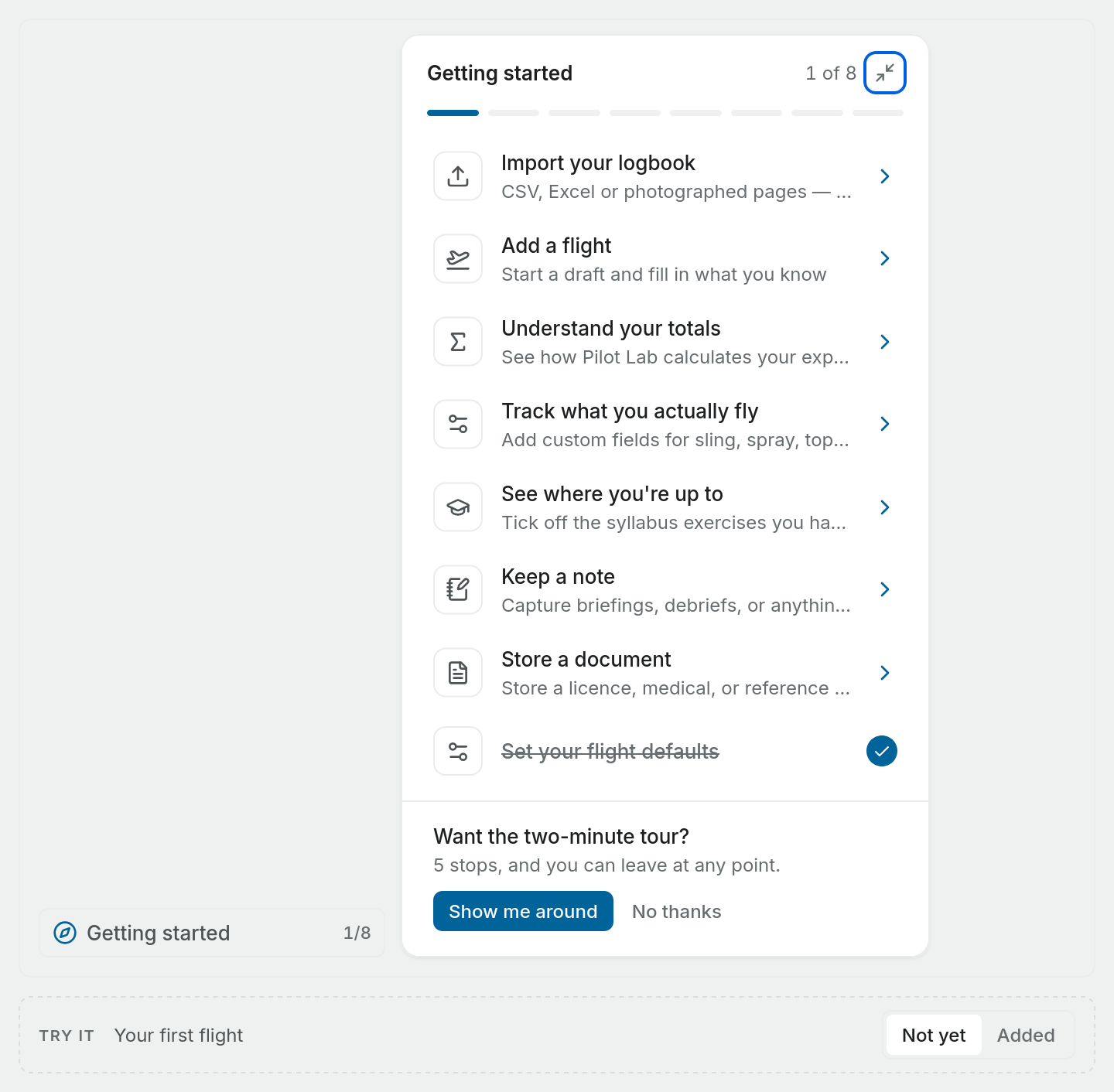
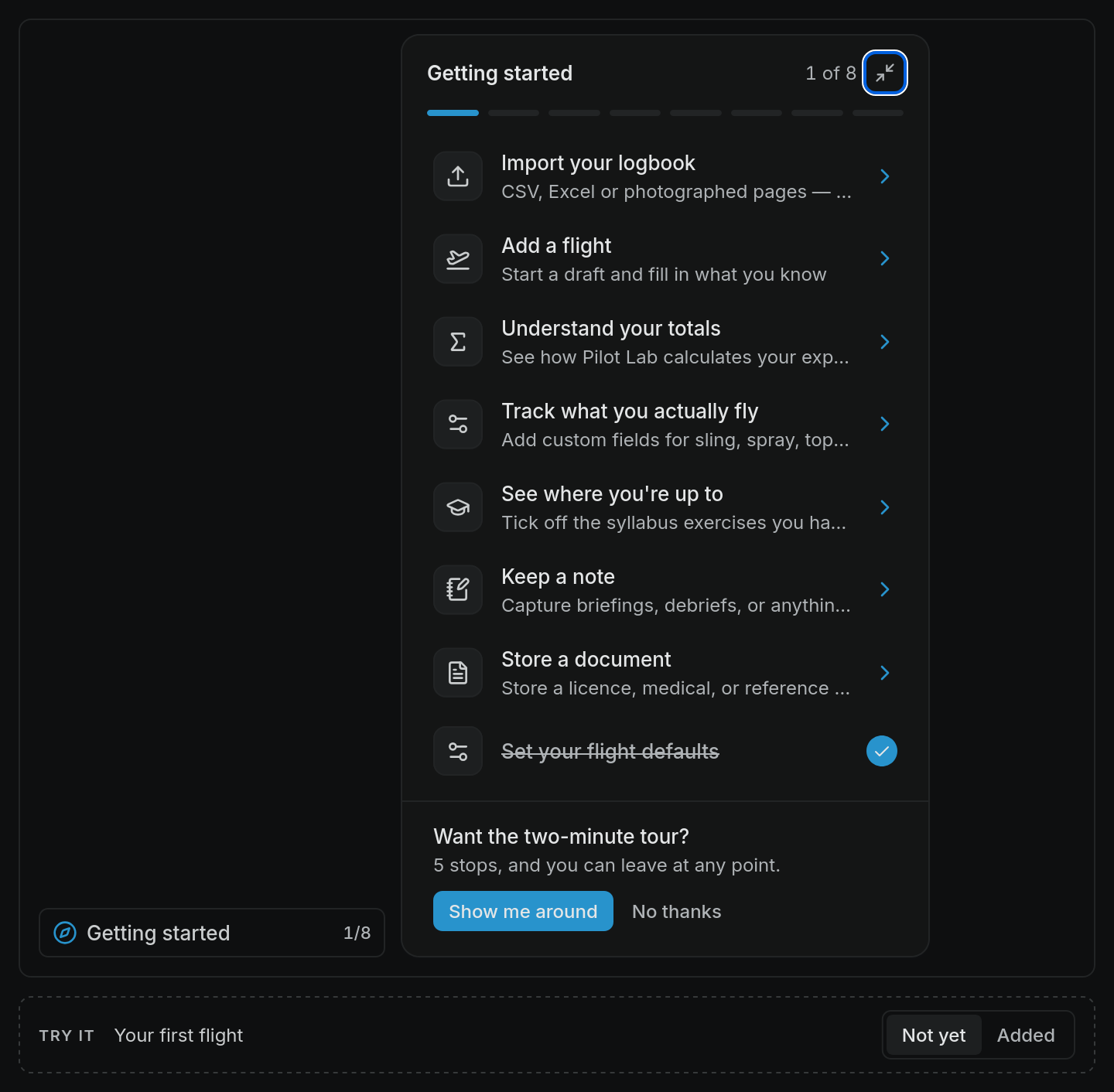
For your first few days, a Getting started row sits at the bottom of the sidebar with a count such as 2/7. Select it to open a short checklist. Each row takes you to the right page, and ticks itself once you've done the thing.
A few details:
- Import your logbook and Add a flight tick together. Either one gets your first flight in.
- See where you're up to only appears if you picked a syllabus during set-up.
- The minimise icon at the top right hides the checklist. Help ▸ Getting started brings it back.
- Once everything is ticked, the row disappears from the sidebar.
The two-minute tour
The checklist also offers a tour: Show me around walks through five stops (the sidebar, your totals, the Planner, Documents and Settings). On a phone the tour is shorter and stays on your list of entries: the menu, your flights, importing, and adding your first flight. You can leave at any point, and Help ▸ Take the tour starts it again whenever you like.
On a phone
On a narrow screen the sidebar is tucked away. Tap the menu icon at the top left to open it. Settings is in the workspace menu at the top of it, and Help sits at the bottom. See Using Pilot Lab on your phone.