Scan a paper logbook
Photograph your logbook pages, upload them into a book, and Pilot Lab reads each page for you to check. Free workspaces and the Pro trial can scan six pages; Pro scans 20 pages a month.
You do not have to type an old paper logbook in by hand. Photograph the pages, upload them, and Pilot Lab reads each one. You then check what it read, line by line, before any of it goes into your logbook.
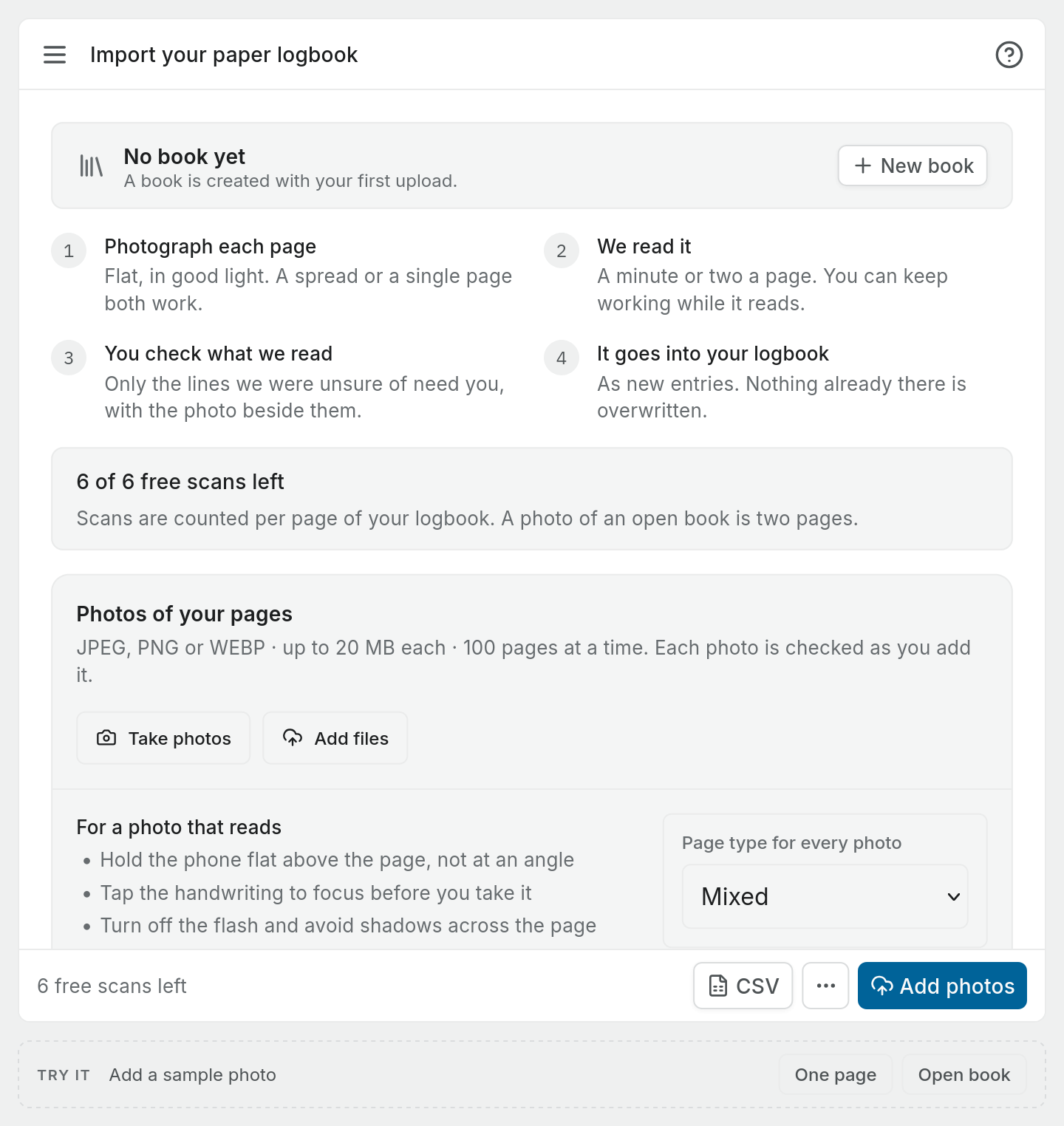
Open Logbook > Import. The page is called Import your logbook and offers two ways in side by side. To scan, press Add photos on Scan a paper logbook. Once you have added photos, the page is called Add pages. From any other import screen, the Import link at the start of the top bar brings you back here.
How it works
- Photograph each page. Flat, in good light. A spread or a single page both work.
- We read it. A minute or two a page. You can keep working while it reads.
- You check what we read. Only the lines Pilot Lab was unsure of need you, with the photo beside them.
- It goes into your logbook. As new entries. Nothing already there is overwritten.
Free, trial and Pro scans
Scans are counted per page of your logbook. A photo of an open book is two pages, because Pilot Lab splits it into the left and right page before reading.
- Free: six pages in total for the workspace. This is a one-off allowance to try the reader on your own handwriting, about three spread photos or roughly 40 flights. It does not reset.
- Pro trial: the same six pages as Free. The screen calls them trial scans.
- Pro: 20 scanned pages a month. The count resets on the 1st of each month (UTC), and the screen shows the date. Pages you scanned in earlier months do not count.
The Add pages screen shows how many scans you have left, and the count in the bottom bar turns red if the photos you have added would need more pages than you have. In that case the read is held: the button is turned off and the screen says why, for example "Reading 3 pages needs 3 free scans. You have 2 left." Your photos stay where they are, so you can remove a few, upgrade (or on Pro, wait for the monthly reset), or import a file instead.
What uses a scan:
- A page that was read uses one scan, even if you later discard it.
- A page that failed because the photo could not be read (too blurred, at an angle, cut off) also uses one. The failed page says so, and reading it again after a retake does not use another.
- A page that failed on our side, for example the reader timed out, gives its scan back. The page tells you "This didn't use a scan".
A spreadsheet import never uses scans. If your history is already typed up somewhere, import a spreadsheet instead.
Books
Pages go into a book, one per physical logbook. The target book is shown at the top of Add pages. Use Change book to send pages to a different one, or New book to start another.
A book can be given a format so every page is read with the right columns. The NZ CAA student pilot logbook (CAR Part 61.105) is one of the formats. If you are not sure, leave it and the first page decides. The list at the bottom of the screen shows every book with its page and flight counts.
Taking photos that read
Tips shown on the upload panel:
- Hold the phone flat above the page, not at an angle.
- Tap the handwriting to focus before you take it.
- Turn off the flash and avoid shadows across the page.
- Fill the frame with the page, edge to edge.
Use Take photos on a phone to shoot pages one after another, or Add files to pick photos you already have. Photos can be JPEG, PNG or WEBP, up to 20 MB each, and you can prepare up to 100 pages at a time. PDFs are not accepted.
Each photo is checked as you add it. One that may not read well is flagged, for example "The page is too small in this photo", with Retake photo beside it. You can still have it read as it is. Before reading you can turn, crop, reorder and remove photos. If the book has no format yet, you can also say whether pages are Handwritten, Printed or Mixed.
Every page is shown as it will be sent. Check each one is the right way up and turn any that is not. Turning a page here is free. Turning it after it has been read means reading it again, so Pilot Lab asks first.
When you are ready, press Read in the bottom bar. The button says how many pages it will read, for example Read 3 pages, and the screen says how many of your scans that uses.
While pages are read
After the read starts you land on the book. Each page shows where it is, for example "Waiting its turn", "Reading the page" or "Writing up the flights", then a summary such as "6 to check" or "Ready to import". You can leave the page and come back. When a page is ready, press Review to check it.
A page that could not be read shows why and what to do, usually Retake page. If a page of flights was read but no lines came back, it says "We couldn't read any flights on this page" and offers Retake photo, Skip page or Read again.
Import the clean lines
You do not have to open every page. Once lines have been read, the book's bottom bar offers Import the clean lines. It imports every line that has nothing to check, across all the book's pages, and first tells you exactly what will happen, for example "Import 214 lines from 12 pages. 41 lines need checking first and stay here." Pages still being read are left out.
The book then lists Lines to check across the whole book, in paper order, with each line's page, date, aircraft and reason. Press Check the next line, or pick a line, to open it on its page. If the import stops part way, press Import the clean lines again. Nothing is imported twice.
Some logbook pages are not flights: the licences page, type ratings, a training record. Pilot Lab recognises these and shows them as Not a page of flights. On a checks and reviews page or a type ratings page, it offers to add what it read to your record. Signed endorsements it finds on your pages are listed separately for you to review.