Club bookings
Read the club booking sheet, make a booking, and sign an aircraft out and back in. Bookings also appear in your personal logbook as planned flights.
Bookings is the club's booking sheet: which aircraft and instructors are busy, when, and who is flying. It is under Operations in the club sidebar. Whether you can see it, and what you can do on it, depends on the permission groups your club gives you.
Read the sheet
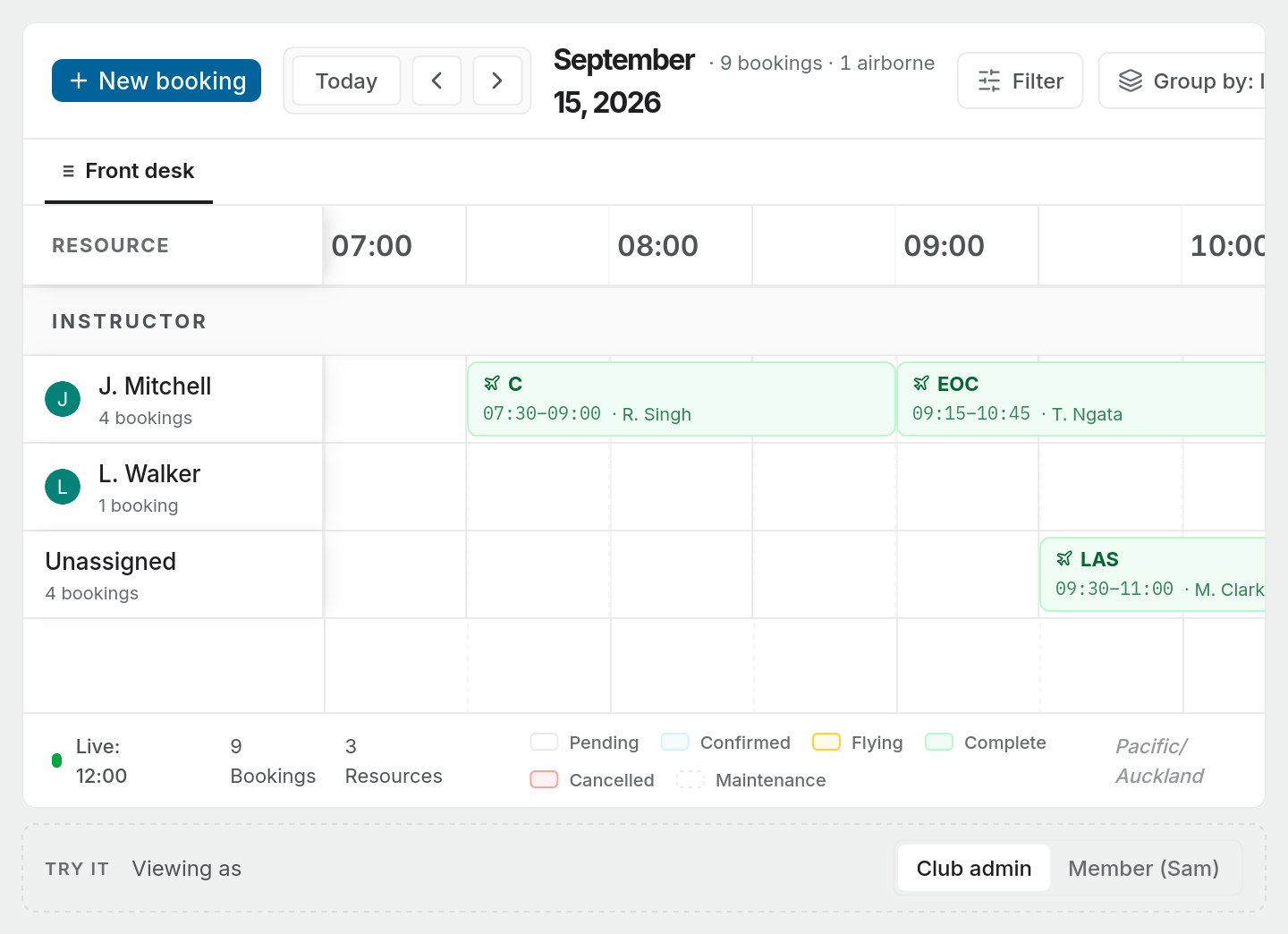
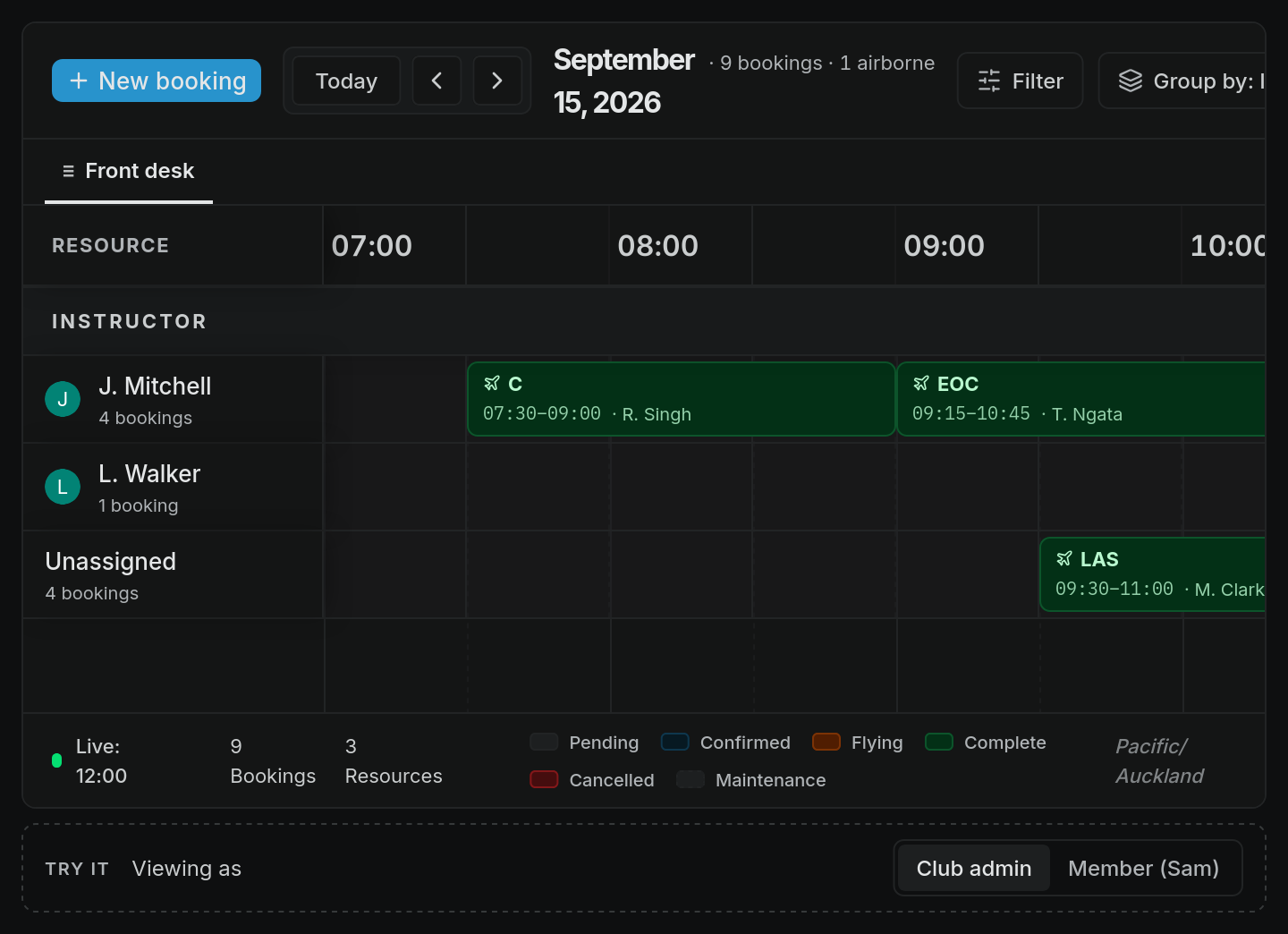
The Day view is a timeline. Time runs left to right in slots (half an hour unless your club sets another length), from the club's opening time to its close. Each row is a resource: an aircraft or an instructor, depending on Group by. Point at a row's name to see how many bookings it has that day, and at once when two overlap. Select the name to open that member's profile or that aircraft's page, if your permissions let you read them.
Each booking is a block, tinted in its status colour, showing its short label (such as Dual, Solo or BFR), its times, and who is flying. A booking that is flying now shows how long the aircraft has been out, such as +30m.
Select a block to open the booking beside the sheet, with its properties, notes and activity. Open as page shows it on a page of its own, and Copy link copies a link to it. Cmd-click (Ctrl-click on Windows) opens the page in a new tab.
Use the toolbar to move around:
- Today, and the arrows, move between days.
- Search bookings narrows the sheet to bookings whose title, type or row name matches.
- Filter shows only bookings with one status.
- Group by changes what the rows are, for example aircraft or instructor. You can pick up to four groupings, and each becomes a section of the sheet.
- Day, Week, Month and Agenda change the view.
The bar at the bottom shows the current time on today's sheet, the number of bookings and resources, and a colour key.
Booking statuses
Table: What each status means
| Status | Meaning |
|---|---|
| Pending | Requested, not yet confirmed by someone who approves bookings |
| Confirmed | Confirmed by the club |
| Checked in | Checked in by the club ahead of the flight |
| Flying | The aircraft has been signed out and is airborne |
| Complete | The aircraft has been signed back in |
| On hold | Paused by the club |
| No show | The pilot did not turn up |
| Cancelled | Cancelled |
Grey dashed blocks marked with a spanner are maintenance: the aircraft is not available.
Make a booking
Members can book aircraft for themselves unless the club has turned that off. If your membership type cannot book, New booking is greyed out, and pointing at it tells you why.
- Choose New booking, or click an empty slot on an aircraft or instructor row. The slot shows as a dashed draft. Drag across slots, or drag the draft's ends, to set the length.
- Fill in who it is for, the Aircraft, the Instructor (optional) and the Flight type. The title is optional: left blank, it is made from the flight type and the member.
- For the label, resource, exact start and end, or notes, choose More options to open the full form.
- Choose Create booking.
If you are booking for yourself, the booking is for you and is confirmed straight away, unless the flight type or a club rule needs approval. Then it is Pending until someone who approves bookings confirms it. A booking the desk makes for someone else starts as Pending.
Before you choose Create booking, the form lists any warnings for that booking. Some bookings need an override, which only people with the booking override permission can give.
Pilot Lab checks each booking and flags problems on it with a warning mark beside its label. A red mark is a warning that blocks the flight, such as an overlap with maintenance, an expired medical or flight review, a flight type that needs an instructor who has not been assigned, or an aircraft that is overdue back. An amber mark is advisory, such as no aircraft assigned yet or an overdue club account. Open the booking to read the warning.
Sign an aircraft out and in
On the day, open the booking. Its header has Sign out aircraft or Sign in aircraft when the booking is ready for it.
- Sign out aircraft starts the flight. Work through the crew and flight details and the pre-flight checks, sign to confirm, and choose Sign out & set active. The booking becomes Flying.
- Sign in aircraft ends it. Record the landings (day and night) and any defects or snags, and check the flight time Pilot Lab works out from the tacho and Hobbs readings, including the block time for your logbook. Sign to confirm and choose Sign in & complete. The booking becomes Complete.
Signing out and in needs the matching permission in your club, usually held by the booking desk and instructors.
The booking's header also opens its check-out sheet: Open check-out sheet for instructors, or Fill in your check-out sheet for the pilot. When the sheet can be printed, a print link sits beside it.
Your bookings in your personal logbook
When you are booked on a club flight, the booking also appears in your personal workspace as a planned flight, marked as coming from the club. Nothing is added to your logbook at this point.
When the aircraft is signed back in, Pilot Lab drafts a logbook entry from the club's record of the flight: the date, aircraft, flight time, landings, route and instructor. You then check it, add anything missing, and finalise it in your own logbook as usual. If the booking is cancelled or marked as a no-show, the planned flight in your workspace shows as cancelled.
If you cannot see Bookings
Ask your club admin. Every member can normally open the sheet and book for themselves, unless the club has changed that. Booking for other people and running the sheet come from permission groups such as Booking desk or Instructor. See Run your club: roles and permissions.