See the flight track on an entry
Where an entry's flight track comes from, what the map and speed and altitude chart show, and why some entries have no track.
When a logbook entry has an ADS-B track attached, its page shows a Flight track section: a summary of the flight, the route drawn on a map, and a chart of speed and altitude you can play back. This article explains what you see and how a track gets there.
Open the flight track
- Go to Logbook > Entries and open an entry.
- Scroll to the Flight track section. It opens by default when the entry has a track, and the header shows how many track points were stored (for example 312 pts).
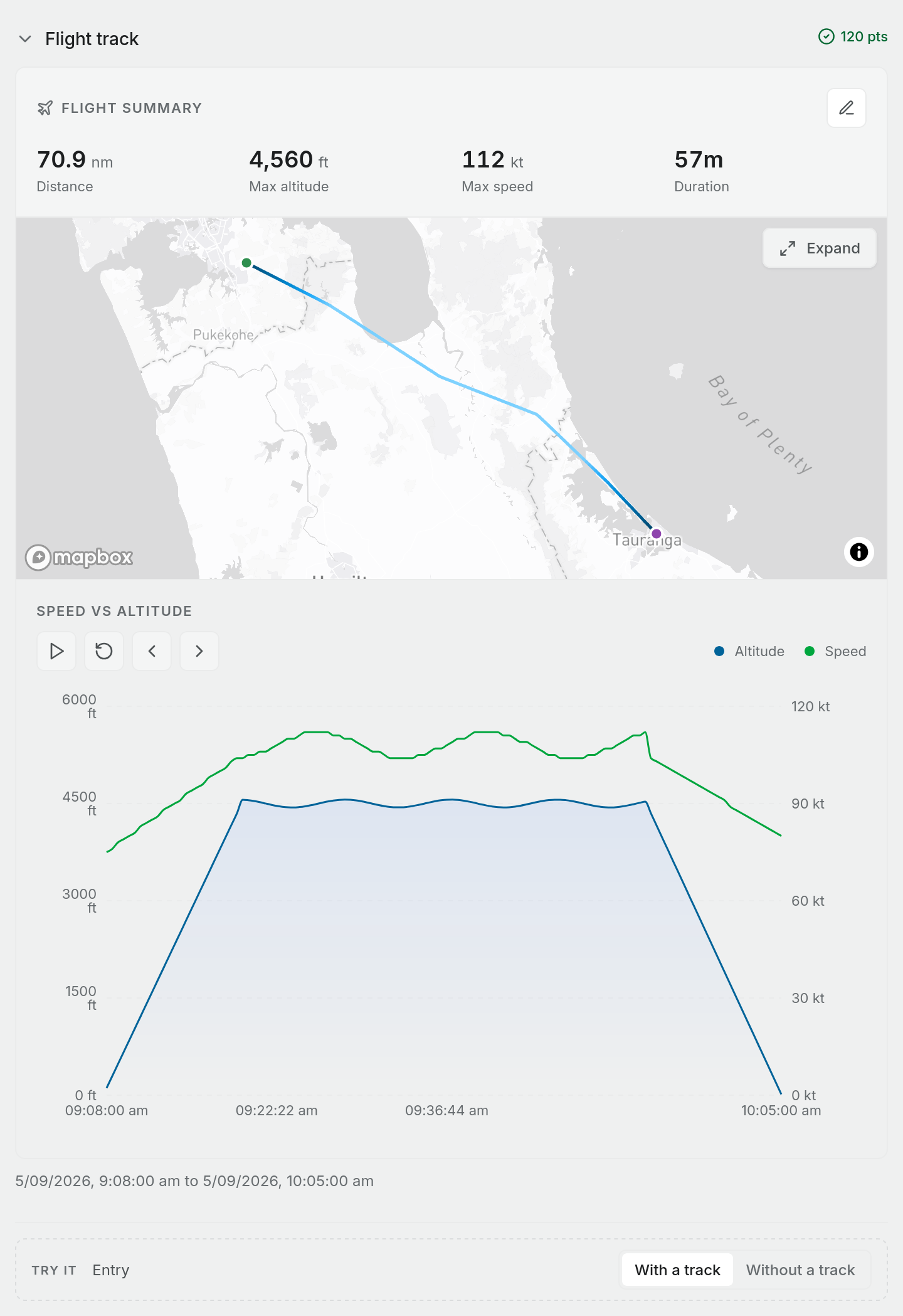
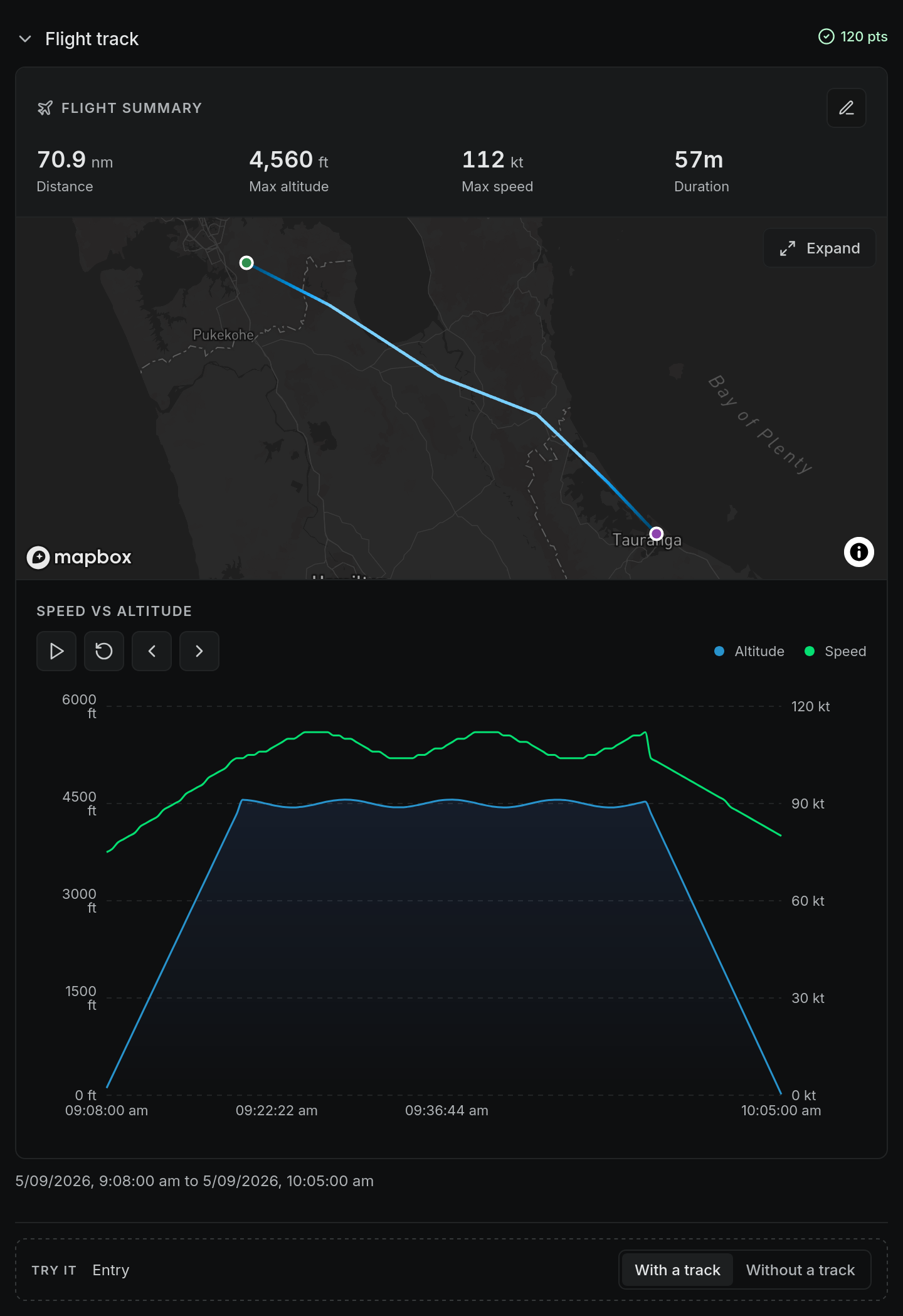
The section has three parts:
- Flight summary. Distance (nm), max altitude (ft), max speed (kt) and duration, all measured from the track itself.
- The map. The flown route, coloured by altitude across that flight's own altitude range. A green dot marks the start and a purple dot marks the end. When you play or scrub the timeline, a marker moves along the route to that moment.
- Speed vs altitude. A chart of both lines over the flight. Use Play, Restart, Step back and Step forward, or drag across the chart, to move through the flight. The readout shows the time in UTC with the altitude and speed at that point. Clear playhead removes the marker.
Under the card, the start and end of the track are shown in your local time.
The pen button in the summary header is Annotate track. It creates a drawing note in Notes, titled after the route and date, where you can sketch over the flight.
Where the track comes from
Tracks come from ADS-B data. Pilot Lab fetches the track of the exact flight you picked from its flight data provider (currently Flightradar24), which you find by the aircraft registration or a flight number and the date. There is no way to upload a GPX, KML or IGC file.
You get a track by using Suggested flights on the entry and choosing Fill flight log on the matching flight. That fills in the times and route, then fetches the track in the background. See Fill an entry from ADS-B data. Suggested flights is a Pro feature. Viewing a track that is already attached is available on every plan.
Why an entry has no track
If there is no track, the section reads No ADS-B flight track is attached to this entry yet. Common reasons:
- The flight was entered by hand or imported. Nothing fetches a track unless you use Suggested flights.
- The aircraft was not visible to ADS-B receivers. No transponder with ADS-B out, or no receiver coverage where you flew, means there is nothing to fetch.
- The flight data has no track points for that flight. Suggested flights can still fill in the times and route from the flight's summary, but no track is attached.
- The entry has no departure time or no aircraft. Both are needed before a track can be stored.
When a track fetch fails, Pilot Lab doesn't show an error. The times and route still fill in, and the Flight track section stays empty.
Planned flights with tracking armed fill the draft entry's times and route automatically when the aircraft lands. They don't attach a flight track, so the map stays empty for those entries unless you also use Suggested flights.
Open the detailed map
The Expand button in the corner of the map opens the detailed map viewer for that flight, with airspace, basemap choices and a replay timeline. It only appears when the entry has a track. See Replay a flight on the detailed map.
Things to know
- The map shows the track as reported by ADS-B receivers. Gaps in coverage appear as straight lines between the last and next points received.
- Distance is the length of the flown track, not the direct distance between aerodromes.
- The track does not change your logged times. Block times and flight time stay what you entered or accepted.