Arrange your logbook dashboard
The logbook dashboard is a board of widgets you can add, remove, move and resize. This covers each widget, including flight activity and milestones.
Logbook > Dashboard is the first page of your logbook. On the right (or at the top on a narrow screen) is your recency and currency panel, which is always there. The rest is a board of widgets you arrange yourself.
All dashboard widgets are free.
The widgets
Table: Dashboard widgets
| Name in the Add menu | What it shows |
|---|---|
| Flight Activity | A day-by-day grid of your flying over the last year |
| Licence Progress | Progress toward the licence you're training for. Manage opens your training settings |
| Training Milestones | Your personal goals and how close you are (see below) |
| Time Totals | Career totals by role: aircraft total, PIC aircraft, SIC aircraft, dual received, instructor, PIC under supervision and simulator total. The rows can follow your Totals preference |
| Recent Flights | Your latest entries. View all opens the entries list |
| PIC vs Dual / Co-pilot | Monthly hours as PIC against dual and co-pilot time, for the last 12 months |
Some widgets have a different title on the card than in the menu. For example, Time Totals shows as Time buckets and Recent Flights as Latest entries.
On the standard Time buckets card, the PIC under supervision row only appears once you have logged some. If you pick a pilot type, the card shows that type's rows instead, and you can change them in Profile settings > Preferences > How you fly > Edit > Totals.
Add, remove, move and resize
There's no edit mode. The board is always ready to change.
- Add a widget. Choose Layout at the top right of the board, then pick from Add widget. You can also right-click an empty part of the board. Only widgets not already on the board are listed.
- Start from a sample. Layout also has Sample layouts: Training (progression and milestones first), Currency (recent flying and career totals), At a glance (four small figures over your activity year), Airline (hours by role, PIC against co-pilot, recent flights) and Everything.
- Remove a widget. Open its … menu and choose Remove from board.
- Move a widget. Drag the grip next to its title. Or focus the grip and use the up and down arrow keys.
- Resize a widget. Drag its bottom corner. Widgets show more detail as they get bigger. For example, the PIC vs Dual chart shows axis values and a legend only at its largest size.
On a phone the board is a single column. Dragging and resizing are off, but the arrow keys still reorder widgets.
The way you arrange the board is saved in your browser, not your account. If you sign in on another computer or clear your browser data, you'll get your home board back, as set below.
Choose the board you start from
Your board starts from a home board. If you picked a pilot type under How you fly, the home board follows it: Training for Student, Currency for Private, Airline for Commercial & airline and Everything for Instructor. Without a pilot type you get Standard, the board your workspace starts with.
To choose a different one, go to Profile settings > Preferences, find How you fly, choose Edit and pick a board under Home page. This choice is saved to your account, and choosing it replaces the board you have now.
If you change your pilot type later, the board only follows if you haven't arranged it yourself since. A board you arranged stays as it is.
Flight activity
The flight activity grid has one square per day. Darker green means more flight time that day, in five steps from none to more than two hours.
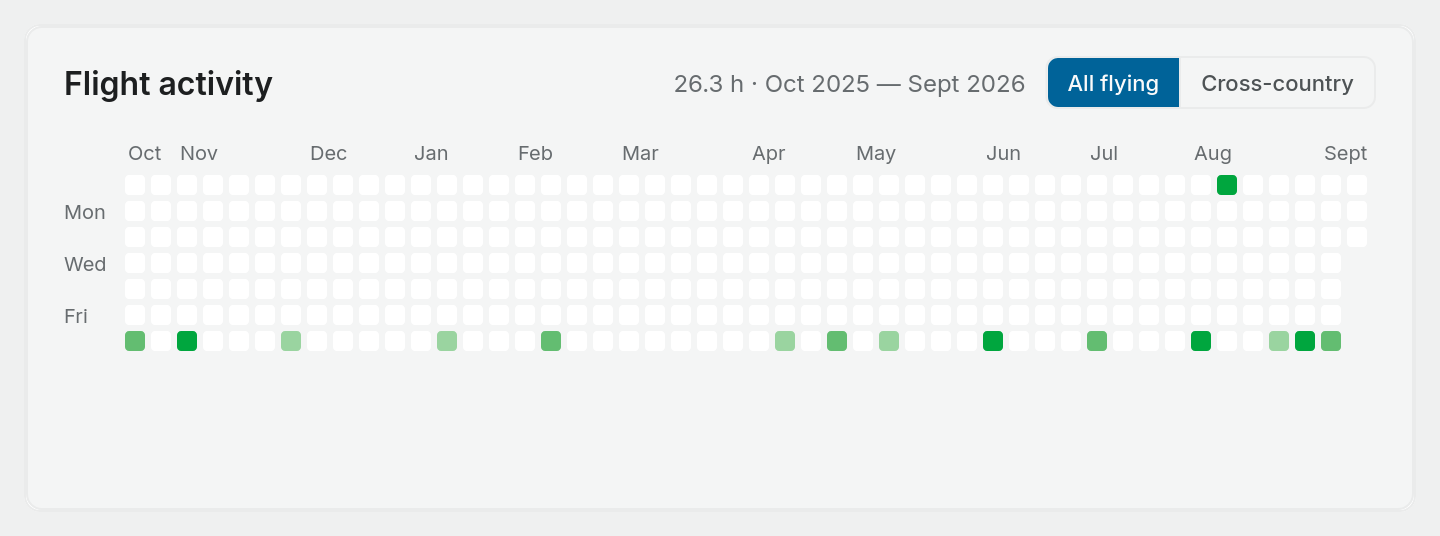
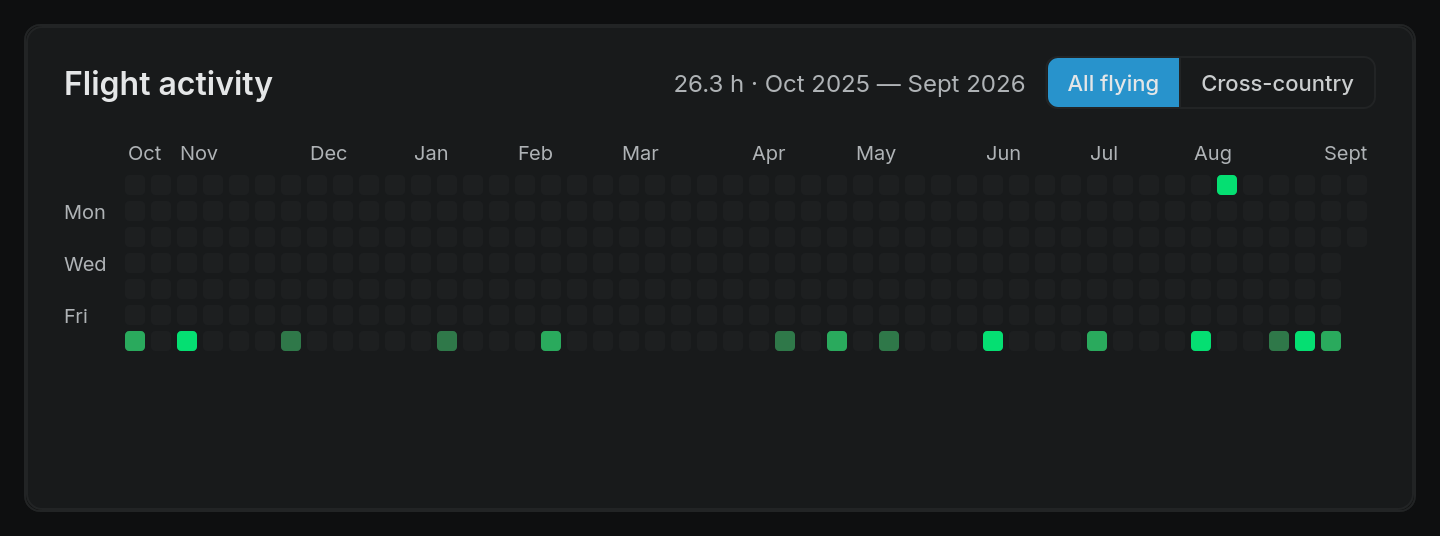
- Hover a day to see its date, hours and number of flights.
- Click a day to open Entries filtered to that date.
- The buttons in the header switch lanes: All flying, Night, IFR and Cross-country. Night only appears if you hold a night rating, IFR only with an instrument rating, and Cross-country only if you've logged cross-country time in the window.
- If the widget is too narrow for a whole year, it shows fewer weeks and the header's date range and total change to match what's on screen.
PIC vs Dual / Co-pilot
A stacked monthly bar chart for the last 12 calendar months. PIC time is the lower bar. Dual / Co-pilot sits on top of it and adds up second-in-command, dual received, dual given and instructor time.
If you have flown command practice (PIC under supervision) in the last 12 months, it is drawn as a third bar at the top of the stack, with its own entry in the legend and in the figures you see when you point at a month. Command practice is not PIC time, so it is never part of the PIC bar. If you have none, the chart shows the two bars only. The range is fixed at 12 months; there's no range switch. Open insights takes you to the Insights page for your own charts (a Pro feature, see Build your own charts in Insights).
Milestones
Milestones are personal goals you set, such as a first solo or 100 hours PIC. Nothing is set up for you.
To reach them, add the Training Milestones widget. Choose Create milestone in the widget, or click a milestone or View all to open the side panel. Open full page shows every milestone.
When you create a milestone you set:
- Name, for example "First solo" or "100 PIC hours".
- Highlight style: Default, Achievement, Checkpoint or Solo.
- Description (optional).
- Track metric (optional). Pick a total such as Total time, Pilot-in-command, Night or Instrument approaches, and a Target. Pilot Lab then tracks progress from your logbook and completes the milestone when your total reaches the target. Leave it as Manual (no auto-tracking) for goals that aren't a number.
- Target date (optional).
Any milestone can be closed with Mark complete. A milestone you closed by hand can be reopened with Reopen.
When the dashboard is empty
With no flights yet, the dashboard reads No logbook data to summarise yet and offers Add flight and Import flights. Below that, Already have hours in another logbook? offers Set opening totals, so you can carry on from your old logbook's last page. If you have already set them, it shows the hours brought forward with Adjust opening totals. If you remove every widget, the board shows Your board is empty with a list of widgets to add back.