Sync your flights with your calendar
Three ways to keep Pilot Lab and your calendar in step: a subscription link, a Google Calendar connection, and importing flights from a calendar you already use.
Calendar sync keeps Pilot Lab and the calendar you already use in step. There are three separate ways to do it, and they move flights in different directions. You can use any of them together.
This is a Pro feature. Go to Settings > Calendar sync. On the free plan the page shows Calendar sync with a Pro badge and what the feature does.
Which one do I need?
| Subscription link | Google Calendar connection | Import from a calendar | |
|---|---|---|---|
| Direction | Pilot Lab to your calendar | Pilot Lab to Google, with limited changes coming back | Your calendar to Pilot Lab |
| Works with | Apple Calendar, Google Calendar, Outlook, most others | Google Calendar only | Google Calendar, Outlook, iCloud, a roster app, any .ics file |
| What moves | Your flights appear in your calendar | Your flights appear in a Pilot Lab calendar in Google | Events you choose become planned flights |
| How fresh | When your calendar app refreshes, usually every few hours | Within moments | Checked every hour, then you review what is new |
| Can it change Pilot Lab? | No | Only by moving or renaming a flight Pilot Lab put there | Only when you add an event |
| Needs a sign-in? | No | Yes, to Google | No |
In short:
- You want to see your flights on your phone: create a subscription link.
- You use Google Calendar and want changes to show up straight away: connect Google Calendar.
- Your flights are already in another calendar, such as a work roster, and you want them on the Planner: import from a calendar.
Any planned flight's full page has Add to calendar, which downloads that flight as a calendar file. That's free, but it won't update if the flight changes.
Create a subscription link
A subscription link sends your flights out to a calendar app. It is read only: nothing you do in the calendar app changes Pilot Lab.
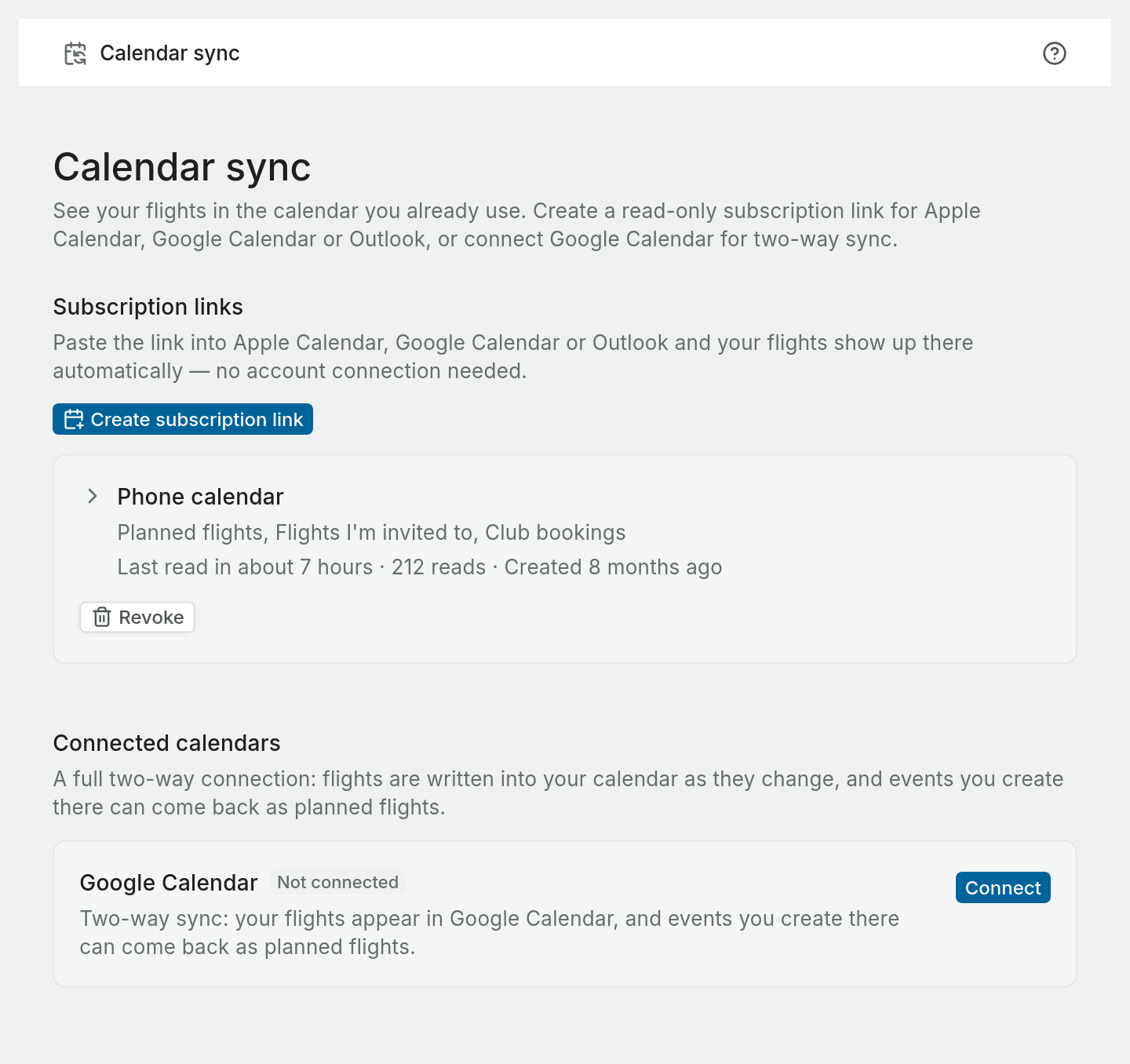
- In Subscription links, choose Create subscription link.
- Give it a Name so you can tell your links apart later, for example "iPhone calendar". Only you see this, and it becomes the calendar's name in your app.
- Under What this calendar shows, choose what to include:
- Planned flights: flights you have planned yourself.
- Flights I'm invited to: flights someone else planned with you on board.
- Club bookings: aircraft and instructor bookings made through a club.
- Logged flights (history): flights already in your logbook. Off by default.
- Include private bookings: bookings you marked private are normally left out. Off by default.
- Choose Create link.
- Choose Copy link. This is the only time the link is shown. Pilot Lab stores it in a form that can't be turned back into the link, so it can't be shown or sent again.
- Add it to your calendar app as a subscription, not an import. An import copies today's flights once and never updates.
The calendar includes flights from the last 180 days and the next 365 days.
Anyone with the link can read the flights you selected. Don't post it anywhere public.
Adding the link to your calendar app
- Apple Calendar (Mac): File > New Calendar Subscription, then paste the link.
- Apple Calendar (iPhone): Settings > Calendar > Accounts > Add Account > Other > Add Subscribed Calendar.
- Google Calendar (web): next to Other calendars, choose + then From URL.
- Outlook: Add calendar > Subscribe from web.
Menu names vary between versions of each app.
How fresh it is
Your calendar app decides how often to check the link, and most check every few hours. A change in Pilot Lab won't show up instantly. Changes to what a link shows also apply at the next refresh.
Manage your links
Each link appears as a row with what it shows, when a calendar app last read it and how many times.
- Click the row to change What this calendar shows.
- Choose Revoke and then Revoke link to turn a link off. Anything subscribed to it stops updating immediately, and the link can never be used again. Your flights aren't affected.
There's no way to see or regenerate an existing link. If you lose one, revoke it and create a new one.
If your Pro plan ends, subscribed calendars stop getting updates and keep the last copy they downloaded.
Connect Google Calendar
A Google Calendar connection also sends your flights out, but Pilot Lab writes them into Google itself, so changes appear within moments.
Under Connected calendars, choose Connect on the Google Calendar card and sign in to Google.
Pilot Lab creates its own calendars in your Google account, Pilot Lab · Flights and, if you include logged flights, Pilot Lab · Logbook. Look for them in the calendar list on the left of Google Calendar. It can't read or change any of your other Google calendars.
Once connected, you can:
- choose What gets synced to Google Calendar, using the same options as a subscription link
- turn on Bring changes back into Pilot Lab, so moving or rescheduling a synced flight in Google Calendar changes it in Pilot Lab
- choose Sync now to push changes straight away
What comes back from Google is limited:
- Only your own planned flights come back, and only their title, start, end and notes.
- A new event you create in Google Calendar does not become a planned flight. To bring events in, use Import from a calendar.
- Deleting a synced event in Google Calendar doesn't cancel the flight. Cancel it in the Planner instead.
- Flights you're invited to, club bookings and logged flights go one way, to Google only.
The Show Google Calendar events in the planner option doesn't show your other Google events yet, because Pilot Lab only has access to the calendars it created.
Disconnect stops syncing both ways. Events already in Google Calendar stay there, and nothing is removed from your Planner.
If the card shows Reconnect needed, Google has stopped accepting Pilot Lab's access. Choose Reconnect and sign in again.
Outlook and Apple Calendar can't be connected this way. Use a subscription link for those.
Import flights from another calendar
Importing goes the other way: it brings flights that already sit in another calendar onto your Planner. It suits a work roster, a club booking calendar, or a personal calendar where you keep your flying.
You stay in control of what comes in. Pilot Lab reads the calendar, shows you its events, and only the ones you tick become planned flights.
Add a calendar
- In Import from a calendar, choose Import from a calendar.
- Choose where the calendar is: Google Calendar, Outlook, iCloud Calendar, Another calendar link or Calendar file.
- For a link, paste the calendar's private address. The dialog shows where to find it for the app you chose, and the steps are also below. For a file, choose an
.icsfile of up to 2 MB. - Give it a Name, for example "Work roster".
- Choose a Colour on the planner if you want flights from this calendar to stand out. Automatic leaves the Planner's usual colours.
- Leave Everything in this calendar is a flight on for a roster or a flying-only calendar. Turn it off for a calendar that also holds other things.
- Choose Find flights.
Choose the flights to add
Pilot Lab lists every event from 30 days ago to a year ahead, with its date, time and title.
- If you said everything in the calendar is a flight, every event starts ticked.
- If you turned that off, only events that look like flights start ticked: ones with a route such as
NZAA-NZWNor a flight number such asNZ123in the title. Tick or untick the rest yourself.
Choose Add flights. Each ticked event becomes a planned flight with the event's title, start and end. A route in the title fills in the departure and arrival, and the event's location and notes go into the flight's notes.
Nothing is added until you choose Add flights, and an event is never added twice.
An imported event becomes a planned flight, the same as one you plan yourself. It is not logged. You still log the flight after you fly it.
Where to find your calendar's link
- Google Calendar: on a computer, open Settings, choose the calendar under Settings for my calendars, and in Integrate calendar copy the Secret address in iCal format.
- Outlook: in Outlook on the web, open Settings > Calendar > Shared calendars. Under Publish a calendar, choose the calendar and Can view all details, choose Publish, and copy the ICS link.
- iCloud Calendar: in Calendar on a Mac or on icloud.com, open the share options for the calendar, turn on Public Calendar, and copy the link.
- A roster or booking app: look for a calendar subscription, iCal or
webcallink in its settings.
Menu names vary between versions of each app. A work account may have calendar sharing turned off by its administrator. If so, export the calendar as a file and use Calendar file instead.
Anyone with the link can read the whole calendar, and an iCloud public calendar can be read by anyone who has its address. Keep your flying in its own calendar where you can, and share that one.
Staying up to date
A calendar you added by link stays connected. Pilot Lab checks it every hour, and when it finds events you haven't dealt with, the calendar's row shows how many are waiting, for example 3 new events to review. Choose Review to see them and add the ones you want.
New events are never added on their own. You always review them first.
A calendar you added from a file is a one-off. To import from it again, choose Import again and pick the file. Flights you already added from it are not added twice.
Manage an imported calendar
Each calendar appears as a row showing where it comes from, how many flights were added and when it was last checked.
- Colour on the planner changes the colour for this calendar's flights, including ones already added. A flight you have recoloured yourself keeps its colour.
- Also send these flights to my synced calendars is off by default. Flights you import are already in the calendar they came from, so Pilot Lab leaves them out of your subscription links and your Google Calendar connection, and you don't see each one twice. Turn it on to include them, for example when you import a work roster and want it in your personal calendar too. Turning it off again takes them back out of Google Calendar straight away, and out of a subscribed calendar at its next refresh.
- Pause stops the hourly check. Resume starts it again.
- Remove stops reading the calendar and deletes its link. Flights you already added stay on your Planner.
If a link stops working, for example because you reset it in your calendar app, Pilot Lab stops checking it after several failed tries and the row says so. Choose Resume to try again, or remove it and add the new link.
What Pilot Lab keeps
- The link is stored encrypted and is never shown again. The row shows only the site it points to.
- Events you add become planned flights.
- Everything else in the calendar is not stored. Pilot Lab reads the calendar each time, and keeps only a scrambled marker for each event you added or passed over, so it isn't offered again.
What importing doesn't do yet
- It doesn't follow changes. If an event moves or is cancelled in the other calendar after you add it, the planned flight stays as it was. Change it in the Planner.
- Repeating events add their first date only. The review list marks them.
- Tracking isn't switched on. An imported flight has no aircraft, so ADS-B tracking stays off for it.