Upgrade to Pro and manage your subscription
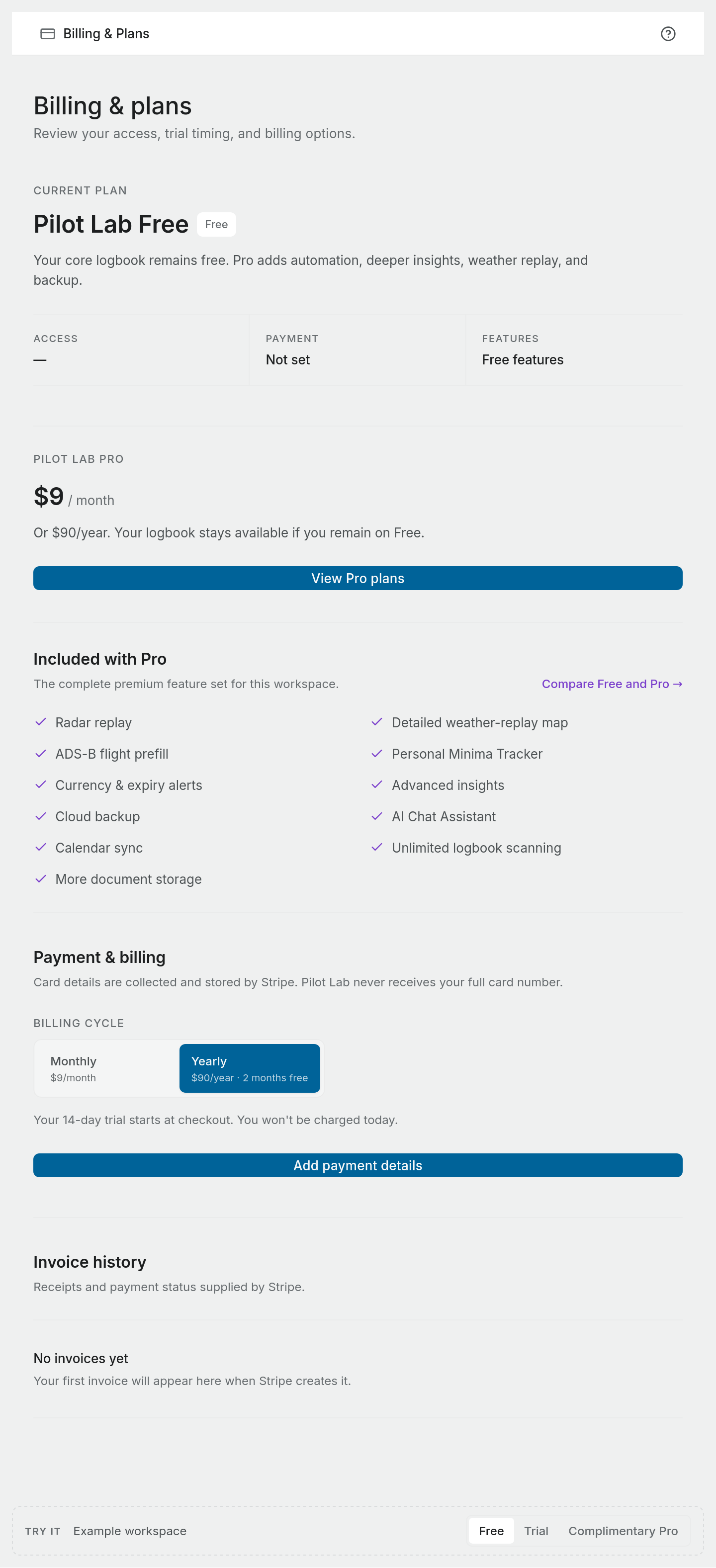
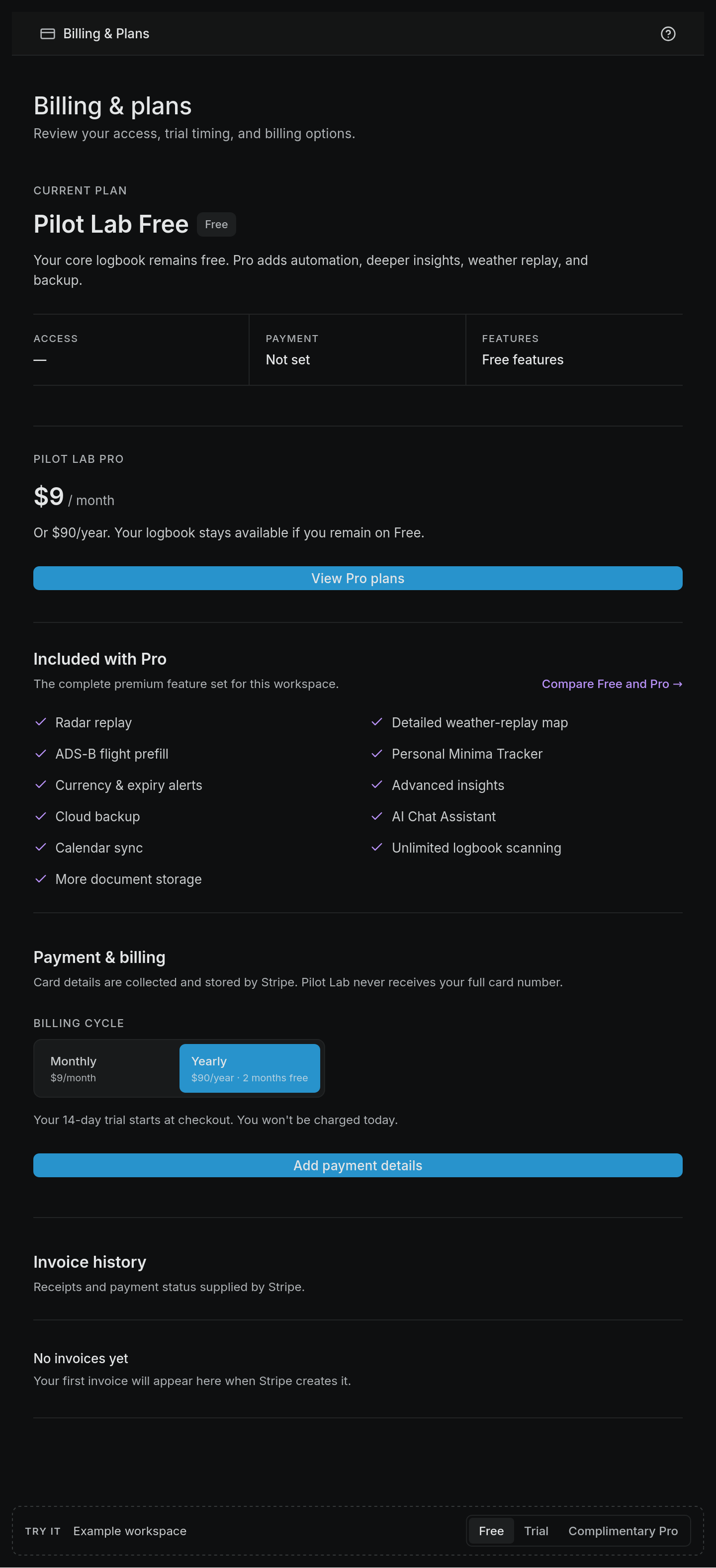
Add payment details on the Billing & Plans page, choose monthly or yearly, and use the Stripe portal to change your card, download invoices or cancel.
Subscriptions are managed on the Billing & Plans page of your workspace settings. Only a workspace admin can open it. In your personal workspace you are the admin. As an admin you can also reach it from your avatar in the top bar: choose Plan and billing.
Payments are handled by Stripe. Card details are collected and stored by Stripe, and Pilot Lab never receives your full card number. Prices are in New Zealand dollars.
Upgrade to Pro
- Open workspace Settings and choose Billing & Plans.
- Scroll to Payment & billing.
- Under Billing cycle, choose Monthly ($9/month) or Yearly ($90/year, two months free).
- Choose Add payment details. A secure Stripe payment form opens on the page under Complete your subscription.
- Enter your card and confirm.
Occasionally the payment form cannot load on the page. Pilot Lab then takes you to Stripe's own checkout page instead, which does the same job.
You will see Payment details added and, a moment later, the page updates to Pilot Lab Pro with the status Active. If you picked the wrong cycle before paying, Change billing cycle closes the form so you can choose again.
To compare plans first, choose View Pro plans or Compare Free and Pro.
If you are on the trial
During your 14-day sign-up trial the page shows a Trial period panel with the days left. Adding payment details during the trial does not charge you straight away: your subscription begins when the trial ends, and the page says so beside the button.
If you have not had a trial
If this workspace has never had a Pro trial, the page says Your 14-day trial starts at checkout. You won't be charged today. You enter your card at checkout and the first charge is at the end of the trial.
Manage your subscription
Once you are paying, the page shows Billing management with a Manage billing button, and Manage in Stripe further down. Both open Stripe's billing portal, where you can:
- update your payment method,
- download invoices and receipts,
- change or cancel your subscription.
Changes you make in the portal come back to Pilot Lab automatically.
Invoices
Invoice history at the bottom of the page lists each invoice with its number, date, status and amount. Statuses are Paid, Due, Draft, Void and Uncollectible. Select an invoice number to open it, or PDF to download it. View all in Stripe opens the full history in the portal.
Cancel
Cancel in the Stripe portal (Manage billing, then cancel). The portal shows the date your cancellation takes effect. Your workspace keeps Pro until then, and afterwards returns to Free. Nothing in your logbook, notes or documents is deleted. See What happens when Pro ends.
Other statuses you might see
- Complimentary: Pro has been given to the workspace by Pilot Lab. No card is needed, and the page says Nothing to manage.
- Locked price: you subscribed while the founding price was on offer. That price stays fixed for as long as you stay subscribed. Cancelling ends the lock. This is separate from Founding Member standing. See Founding Members.
If a payment fails
Stripe retries a failed payment for a period. Your workspace keeps Pro while Stripe is retrying. If the payment still fails, the subscription ends and the workspace returns to Free. Updating your card in the portal is usually all it takes.
The plan belongs to the workspace, so whoever is the workspace admin manages it. You cannot pay for Pro on someone else's personal workspace.