Draft and final entries, edits and deleting
Every entry starts as a draft. Finalising certifies it as your record. Later changes need a reason and are kept in the entry's history.
A logbook you can trust needs two things: flights you can still work on, and flights that are settled. Pilot Lab keeps them apart with an entry status, shown as a coloured badge on the entry and as a thin stripe down the left edge of each row in the entries table.
The statuses
| Status | What it means |
|---|---|
| Draft | Still being filled in. You can change anything. Not counted in your totals. |
| Imported | Came from a reviewed import (a scanned page or a spreadsheet). Counted in your totals, not yet certified by you. |
| Final | You have certified it as a true record. Counted in your totals. |
| Signed | An instructor has signed it off. |
| Locked | Closed. It can't be edited or deleted. |
Finalise a flight
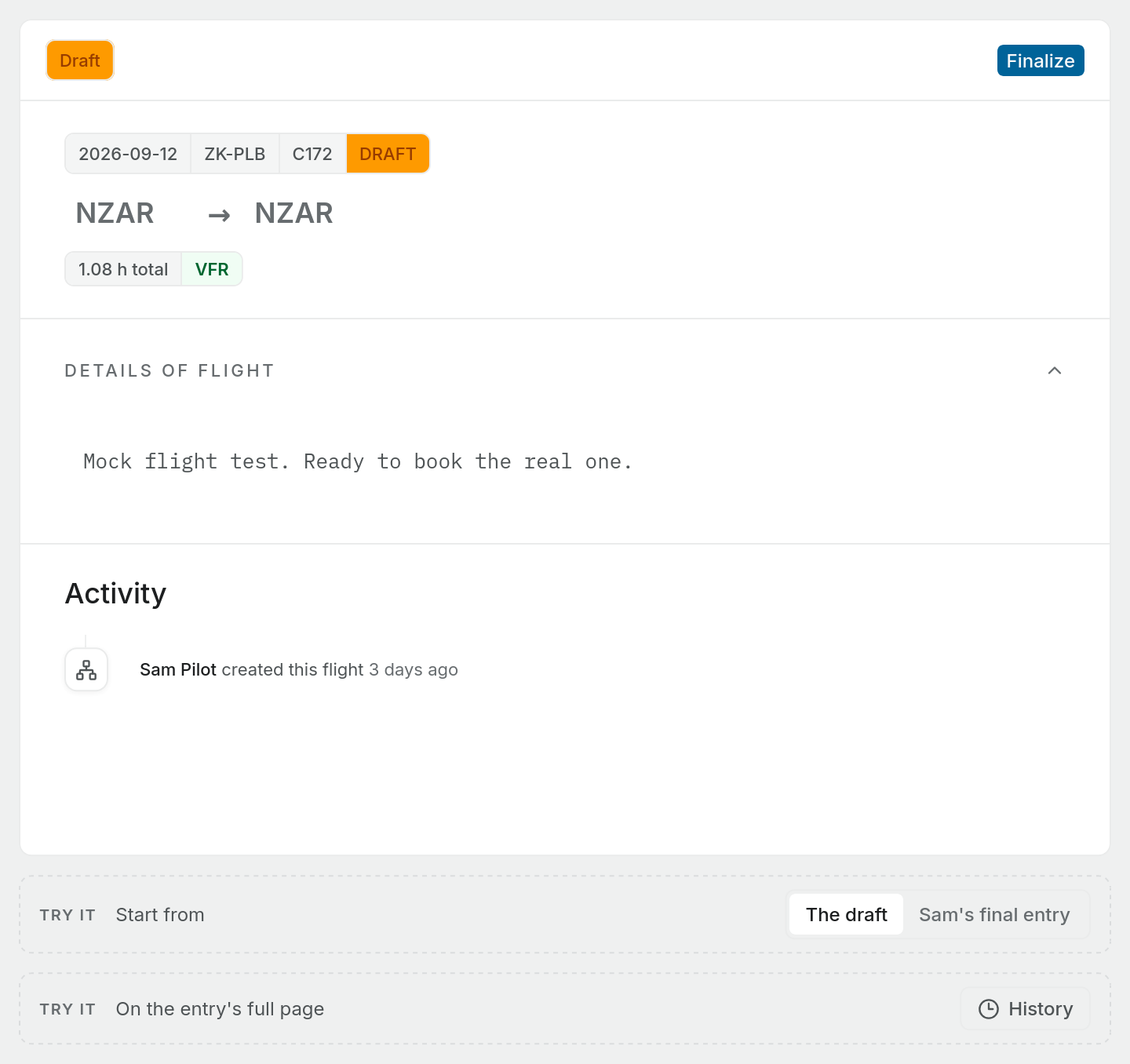
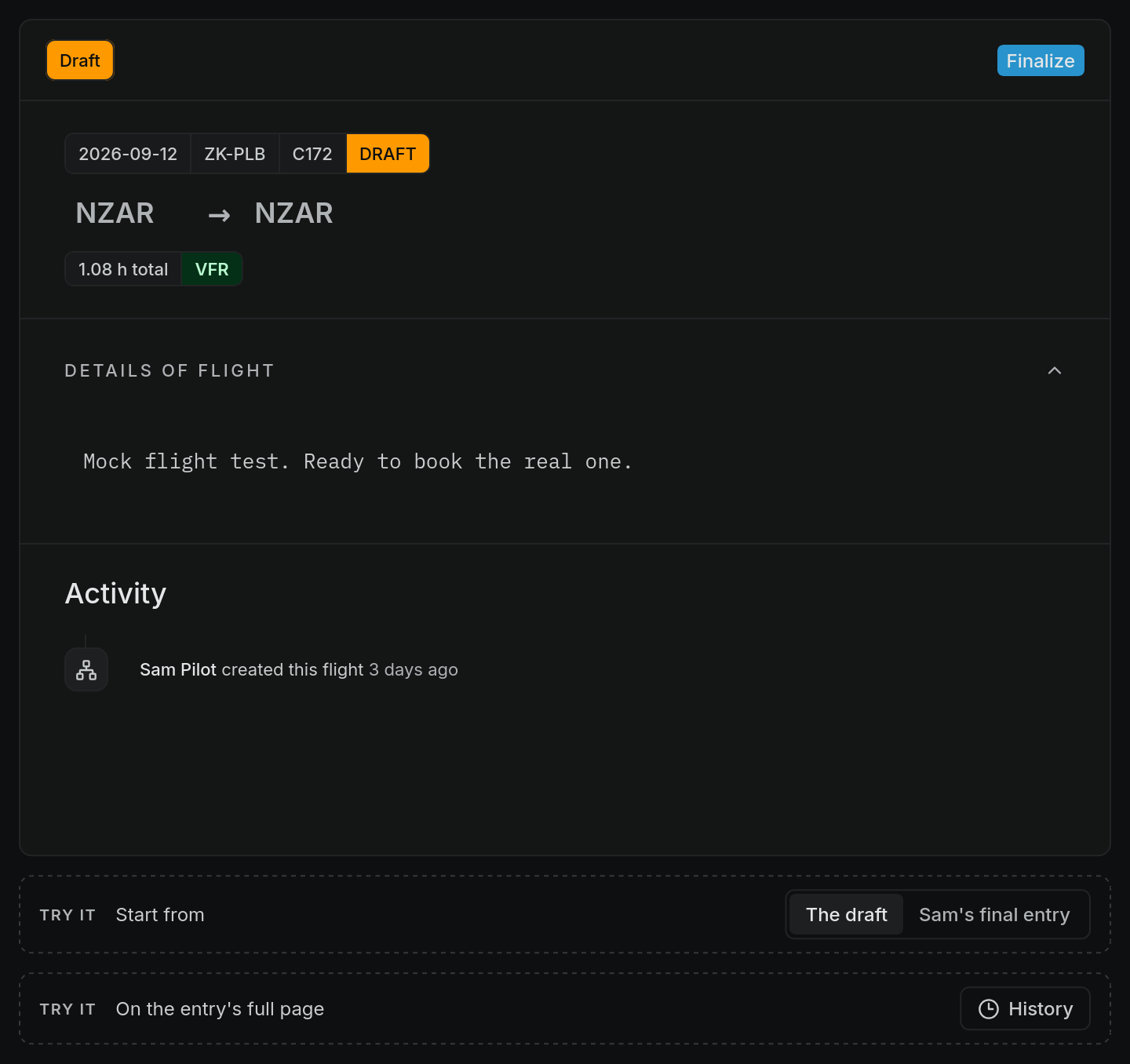
- Open the draft and fill in the required fields. If anything is missing, or the hours you wrote don't add up, hover the badge to see the Finalization requirements list.
- Press Finalize. You'll find it at the top of the side panel, on the full page view, and in the right-click menu on the entries table.
- Read the declaration in Certify this entry: "I certify that the entries in this logbook are true and correct."
- Press Certify. The badge turns to Final, and hovering it shows who certified the entry and when.
To finalise several drafts at once, tick them in the entries table (only draft and imported rows have a tick box) and press Finalize in the bar that appears. Entries that are missing something are counted as blocked and left as they were.
Imported entries can be finalised the same way when you've checked them.
A flight can't be finalised while it has changes that haven't been saved yet. Pilot Lab says so ("This flight has changes that are not saved yet") and you can finalise once they have been sent.
Changing a flight after it is final
A final entry isn't frozen. You can still correct it, but Pilot Lab asks why.
- Open the entry, either in the side panel from the entries table or on its full page view.
- Change the field. An Edit reason required box appears.
- Say what you changed and why, for example "Corrected block-on time per ATC tape review", and press Save with reason.
The change and your reason are saved together. If you press Cancel, nothing is saved.
If the entry was signed by an instructor, the box also warns that saving will cancel the signature. The instructor is told, and the entry goes back to Final until it is signed again.
There is no way to turn a final entry back into a draft. Finalising is one way.
See an entry's history
On the full page view of an entry, the History button lists every version of it: when it was created, each field edit, when it was finalised and any sign-off. Each row shows who made the change, when, and a short fingerprint of that version. Open a row to see the old value next to the new one and the reason given. Edits made after the entry was final carry an Edited after final label.
Each version is chained to the one before it, and covers the hours Pilot Lab worked out as well as what you entered. The history view checks that chain and shows Hash verified if nothing has been altered outside the app, or Chain broken if something has.
Delete an entry
Right-click a row in the entries table and choose Delete, or use the delete button on the entry's full page. Confirm in the dialog.
A deleted flight leaves your entries list and stops counting in every total straight away. The deletion is recorded in the entry's history.
Pilot Lab has no bin or restore option for deleted entries. The confirmation says "This cannot be undone", and it means it. If you delete a flight by mistake, add it again.
Locked entries can't be deleted.