Find, filter and arrange your entries
The entries page shows your logbook as a table, list, calendar or timeline. Filter by status, aircraft, date or text, and choose which column groups to show.
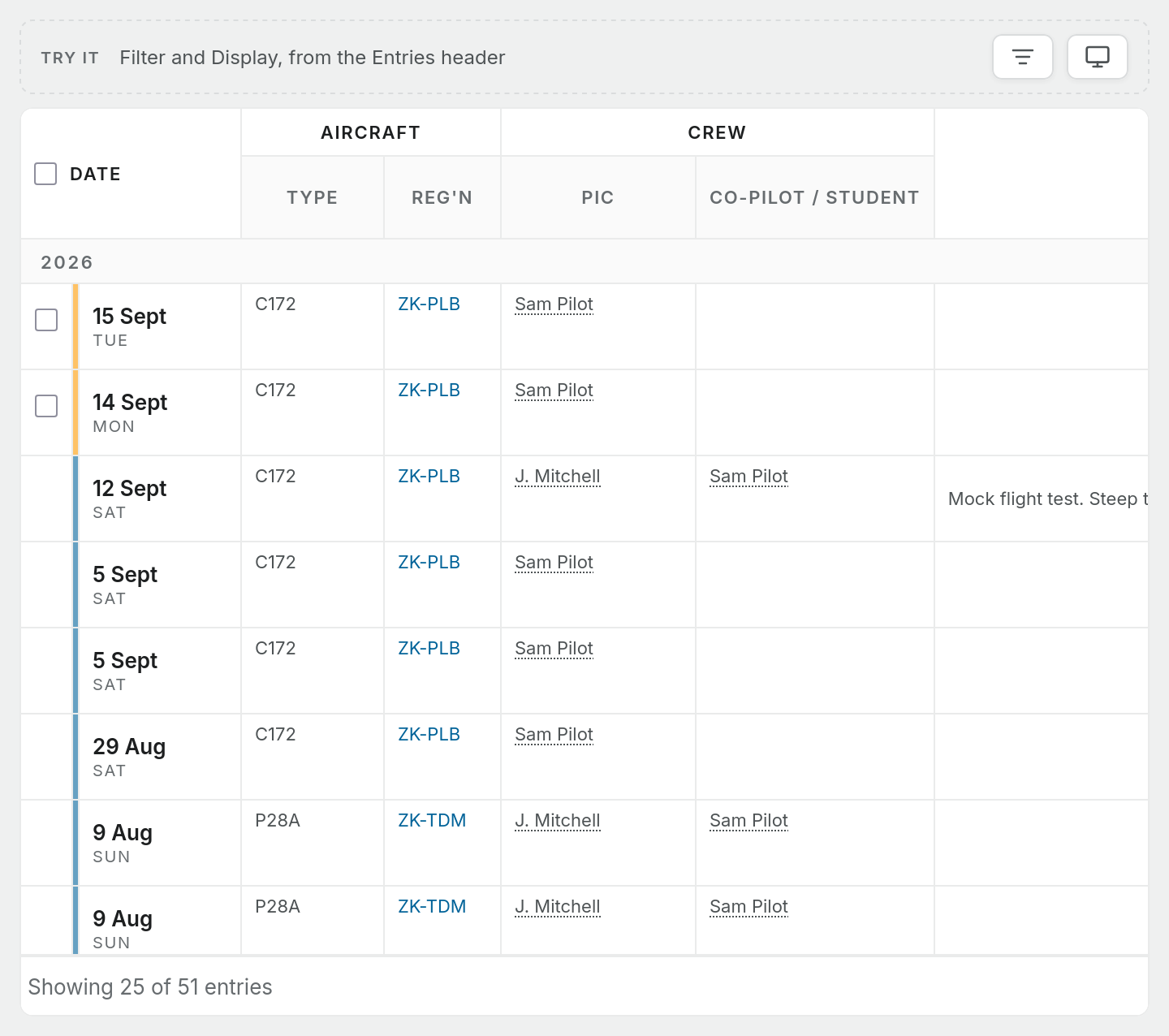
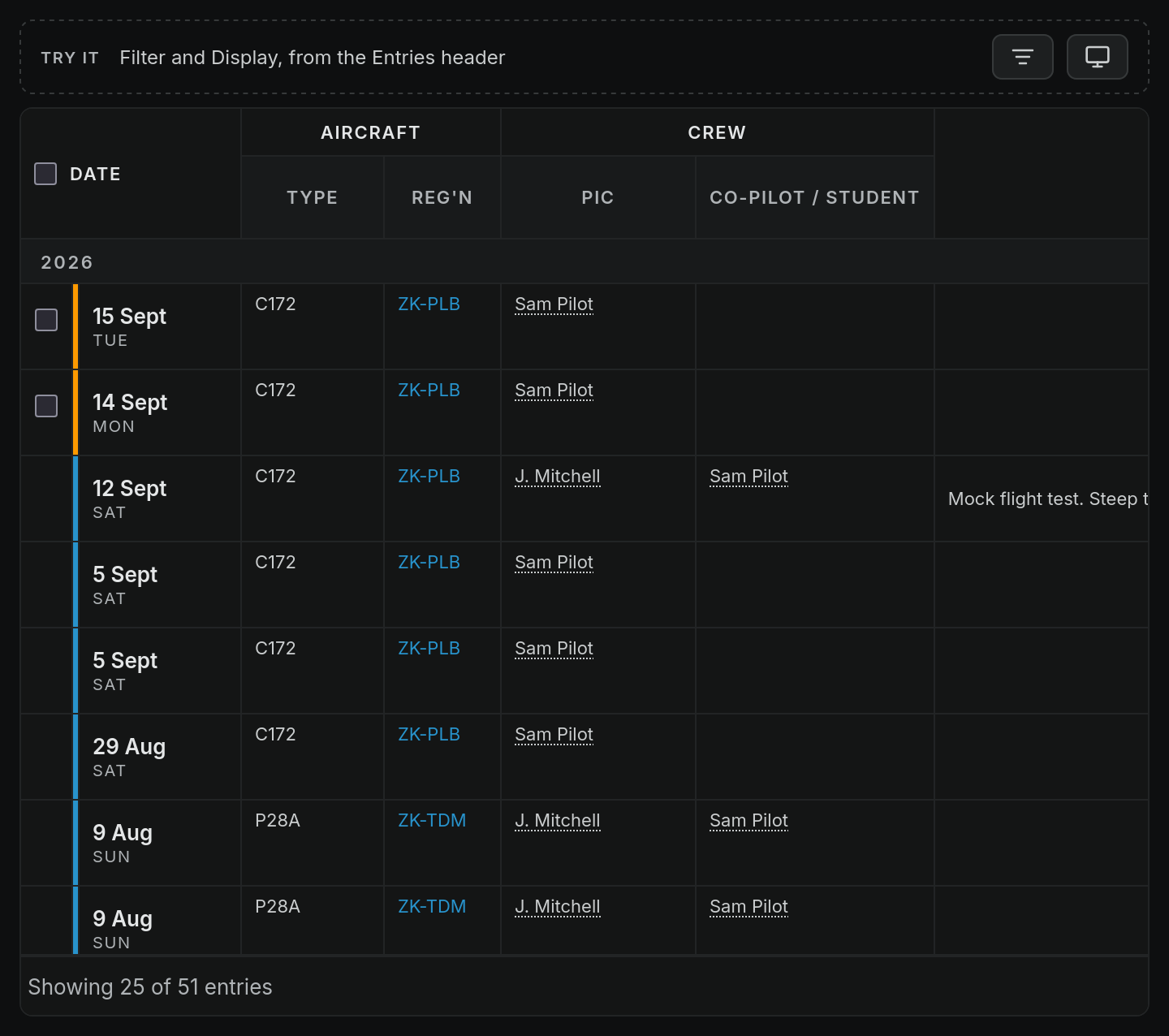
Logbook > Entries is your full logbook. It opens in the Table layout, laid out like a paper logbook, with the newest flights first.
Reading the table
- Rows are grouped under a band for each year. Click a year band to jump to it.
- The thin coloured stripe on the left of each row is the entry's status: amber for Draft, blue for Final, green for Signed, grey for Locked, and a separate colour for Imported. See Draft and final entries.
- Empty cells are left blank, and so is a time column the flight put no time in, so the column that holds the flight's time stands out. A count of zero, such as 0 landings, still shows as
0. - The registration links to that aircraft's page.
- More flights load as you scroll. The footer shows "Showing N of N entries", then "All flights loaded".
Click any row to open the flight in a side panel next to the table. Right-click for Open, Open full page, Finalize (drafts and imported entries) and Delete.
Change the layout
Use the layout buttons in the header (on a phone, it's the Layout option under Display):
- Table: every logbook column, as above.
- List: one card per flight with the route, status, aircraft, flight time and remarks.
- Calendar: flights on a month grid.
- Timeline: flights in date order.
Filter your flights
Press Filter in the header. The button shows how many filters are on.
| Filter | Options |
|---|---|
| Status | All statuses, Draft, Final |
| Source | All sources, Manual, Import, API |
| Aircraft | All aircraft, or one registration |
| Date from, Date to | A date range |
| Search | Matches departure, arrival and Details of Flight |
Search lives inside the Filter menu. There isn't a separate search box.
Choose what's shown
Press Display. It shows only the settings the current layout uses:
- Ordering (Table and List): newest or oldest first, or sort by total time, PIC hours, night hours, day landings or when the entry was created. Calendar and Timeline place flights by date, so they always load newest first.
- Display properties (Table): tap a chip to show or hide it. The chips are SE Day, SE Night, ME Day, ME Night, Instrument, Take-offs and Duty. If you never fly twins, turning off ME Day and ME Night makes the table much narrower. The Landings columns are always shown.
Calendar and Timeline have no display settings, so on a computer the Display button is hidden for them. On a phone, Display still holds the layout switcher.
Your column choices are saved to your profile, so they follow you to other devices.
Columns for your kind of flying
The Layout menu in the header (it reads Layout: and your pilot type, or Standard if you haven't picked one) sets the table's columns in one go. Pick Student, Private, Commercial & airline or Instructor and the table shows the columns that kind of flying fills. For example, Private hides the multi-engine, instrument, take-off and duty columns. Choosing a pilot type sets it for every page, not just this one.
Once you turn a column on or off in Display, the menu reads Custom. Choose Reset to your pilot type to go back to its columns. You can change all of these preferences in Profile settings, under How you fly.
Any custom fields your workspace has appear as a Custom group at the right-hand end of the table.
Finalise several flights at once
Tick the box at the start of each draft or imported row, or tick the box in the Date header to select them all. A bar shows how many are selected and how many are blocked by missing fields. Press Finalize to certify the ready ones together.
Things the entries page doesn't do yet
- No totals row. The Table layout doesn't add up its columns at the bottom. Your totals are on the dashboard. See How your totals are worked out.
- No saved views. You can't save a filter and display setup under a name.
- No inline editing in the table. Click a row and edit in the side panel.