Upload a licence, medical or certificate
Keep scans of your licence, medical certificate, ratings and aircraft paperwork in Documents, with an expiry date where one applies.
Documents is where you keep the files that go with your flying: your licence and medical certificate, rating and endorsement paperwork, a POH or weight and balance sheet, receipts and fuel slips. It sits under Notes & Documents in the sidebar.
Upload a document
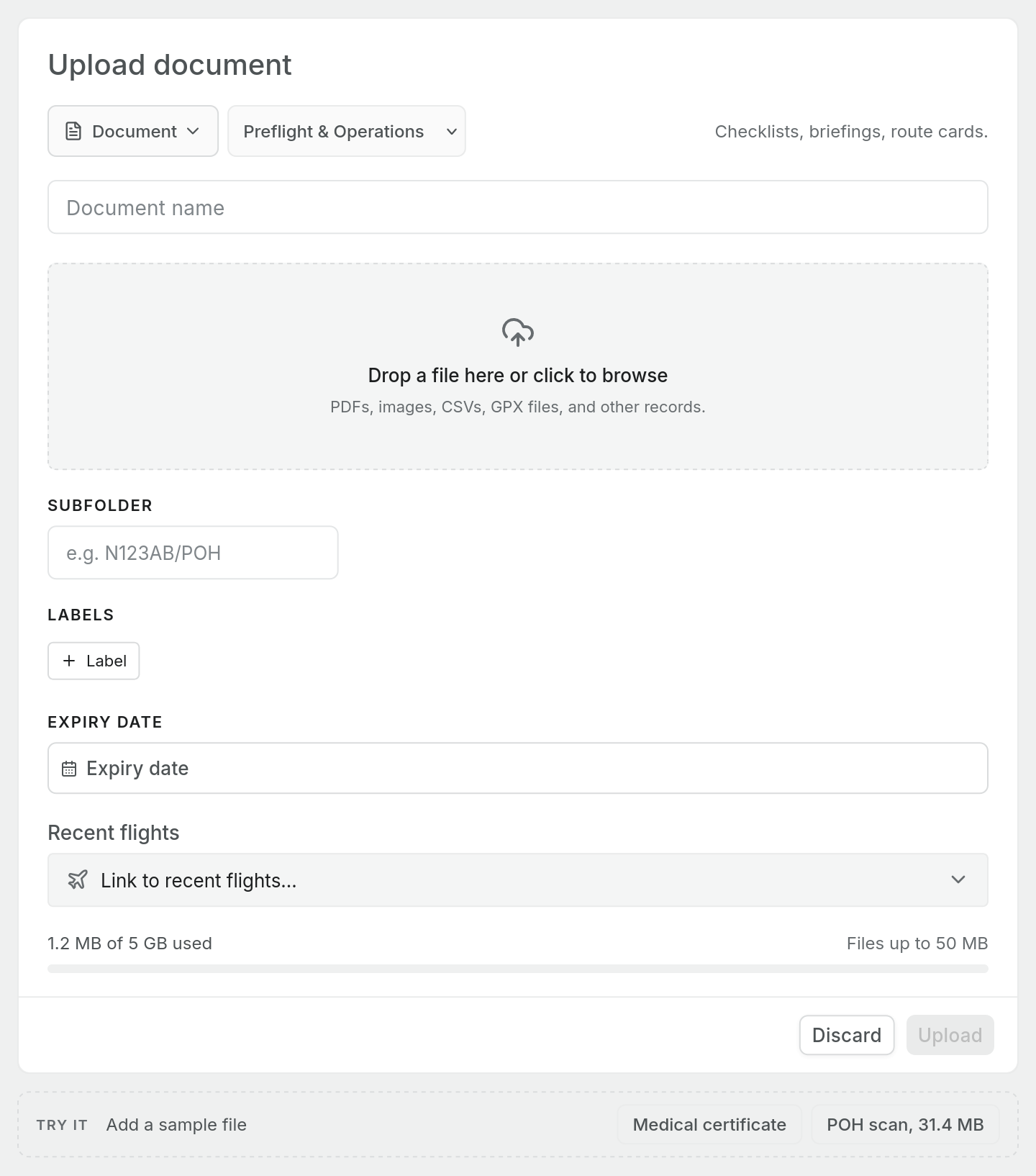
- Open Documents and choose Upload at the top right.
- Pick a category from the dropdown. The line beside it describes what belongs there.
- Type a Document name, or leave it and the file name is used.
- Drop the file onto the box, or click it to browse.
- Fill in any of the optional fields below.
- Choose Upload. Discard closes the window without saving.
Categories
| Category | For |
|---|---|
| Preflight & Operations | Checklists, briefings, route cards |
| Aircraft Documents | POH/AFM, weight and balance, maintenance logs |
| Pilot Certifications | Licences, ratings, endorsements |
| Medical & Currency | Medicals, BFR/IPC, currency records |
| Training Records | Syllabus pages, lesson notes, sign-offs |
| Flight Attachments | Receipts, strips, fuel slips |
| Flight Photos | Phone or action camera photos from flights |
| Unfiled | Uploaded but not yet categorised |
A licence goes under Pilot Certifications and a medical certificate under Medical & Currency. You can move a file to another category later by dragging it.
Optional fields
- Subfolder files the document in a folder inside its category, for example
ZK-EBR/POH. Use a slash to nest folders. - Labels tags it with your workspace's labels, the same ones you use on notes.
- Expiry date records when the document runs out. See Track document expiry dates.
- Recent flights links the document to one or more of your last eight flights.
Above the Upload button, the window shows how much of your document storage you have used and the largest file you can upload. See Document storage limits.
What kinds of file
Any file type can be uploaded: PDFs, photos, CSVs, GPX tracks, Word documents and so on. PDFs and images preview inside Pilot Lab. Other types show Preview not available and can be opened or downloaded.
For a paper licence or medical, a clear phone photo or a PDF scan both work. A PDF keeps multi-page documents together.
Seeing documents on a flight
A document linked to a flight appears in that flight's Attachments section in your logbook, and the flight appears under Linked flights on the document. Uploads start from the Documents page. The flight's Attachments section lists what is linked but has no upload button of its own.
Who can see your documents
A document you upload is private to you. Other members of the workspace cannot see it. This matters in a club workspace, where a medical certificate is sensitive.
There is one exception in a club workspace. A document filed under Training Records, or linked to a training lesson, is also listed in the club's training documents to the people who manage training records. By default those are club admins and instructors. Keep personal paperwork such as a medical out of that category.
Uploading a licence or medical here stores the file. It does not update your licence, ratings or medical in your profile, and Pilot Lab does not read dates out of the scan. Record those under your profile's Licences and Medicals tabs as well, so currency and expiry checks can use them.