Get an endorsement signed and keep your endorsement book
Ask your instructor to sign an endorsement on a flight, add paper endorsements from a photo, and see every endorsement you hold in one place.
An endorsement is an instructor's signed statement about you, such as a first solo authorisation, a solo cross-country authorisation or a type endorsement. In Pilot Lab each one is attached to the flight it relates to, records who signed it and when, and is protected so that a later change shows up.
Where endorsements live
- On a flight. Open the flight from Entries and expand the Instructor section. The Endorsements list there shows everything signed on that flight and any request still waiting.
- In your endorsement book. Settings > Endorsements shows every endorsement you hold across all flights, grouped by type. You can also type "/" in the ask bar on your Home page and choose Endorsement book.
Ask your instructor to sign
- Open the flight and expand Instructor.
- Select Request endorsement.
- Enter your Instructor email and, if you like, a Note to instructor such as "solo cross-country to Hamilton". If you share your training record with a club, its instructors are listed above the email field under the club's name. Choosing one fills in their email for you.
- Select Send request.
You do not choose the type of endorsement. Your instructor picks it when they sign, from the endorsement types for your authority, and fills in any details it needs (for example the destination of a solo cross-country).
The flight now shows Pending sign-off, with a row reading Awaiting signature, who it was sent to and when the request expires (14 days later). Withdraw cancels it.
Your instructor sees the request under Sign-off requests on their Sign-off queue, reviews it and selects Sign endorsement. A club instructor finds it in the club's Instruct > Sign-offs instead, and signs by typing SIGN to confirm. See signing as an instructor.
A club instructor can also send the request back unsigned. The flight then shows Returned for correction with their note saying what to fix. Nothing is signed. Correct the flight, then request the endorsement again.
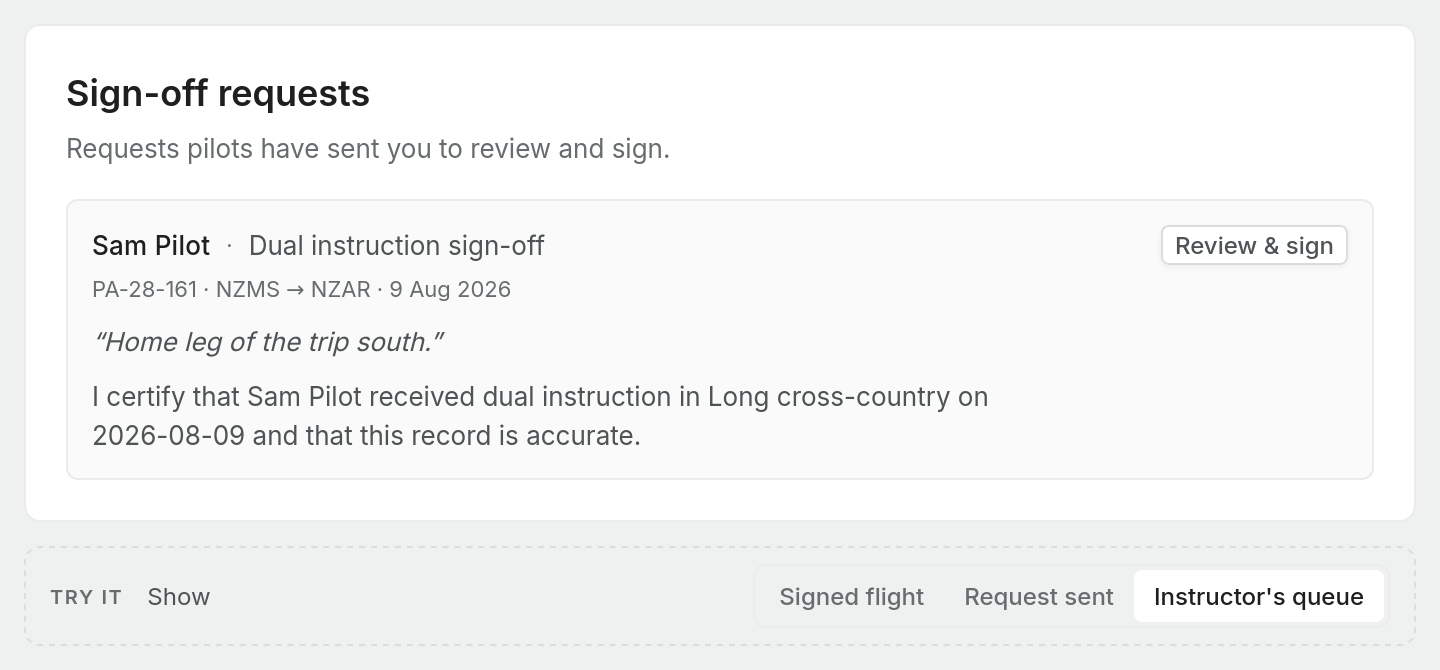
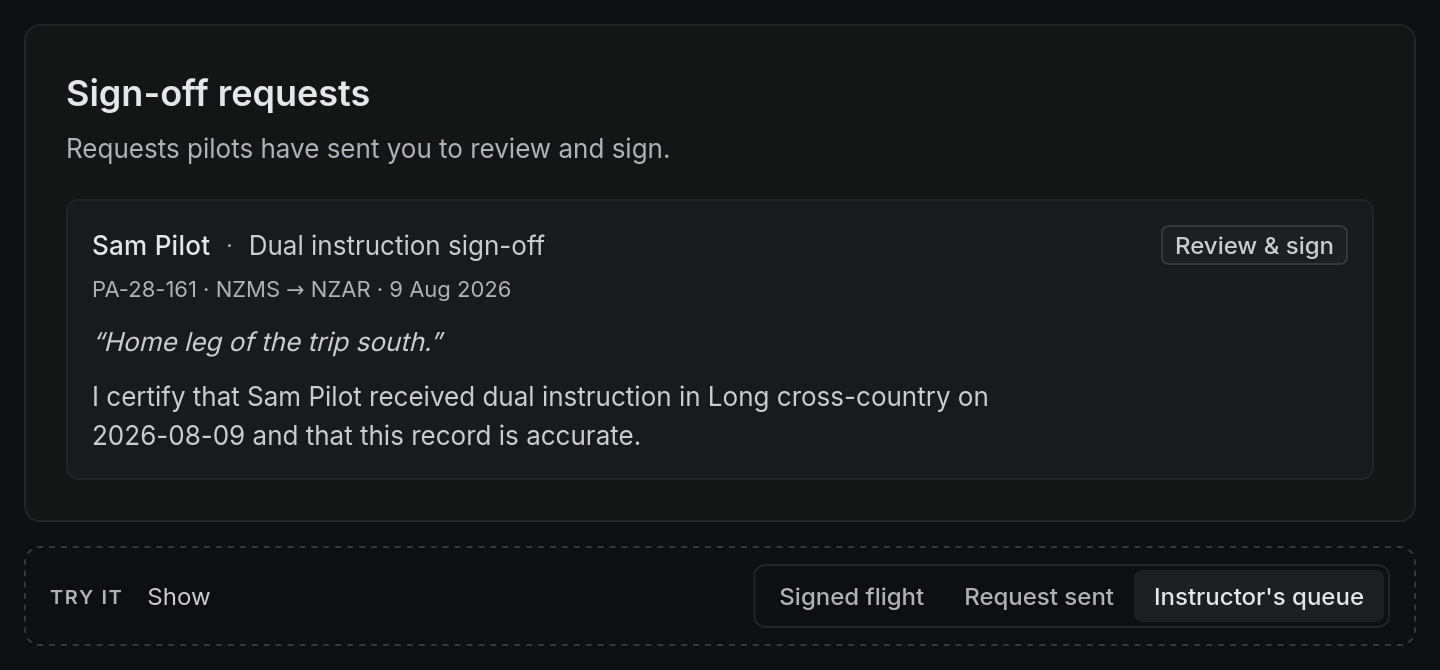
To sign in the app, your instructor needs a Pilot Lab account and one of two things. Either they have the Instructor role in the workspace your flights are in, or they are an instructor at a club you share your training record with. The Instructor role cannot currently be chosen from a personal workspace's members screen, so for a personal logbook the club route is the usual one. If the email you enter is neither, the request is refused with a message saying so. Some installations also allow a single-use email link for instructors without an account; when that is switched on, the request dialog tells you, and you get a QR code to hand to your instructor in person. If neither applies to you, record the paper endorsement from a photo, below.
What the status badges mean
- Verified. Signed in Pilot Lab, and the record is exactly as it was when signed.
- Altered. The stored record no longer matches what was signed. On a flight the badge adds "export blocked": the endorsement is not treated as valid in exports.
- Imported · not verified. Transcribed from a photo of a paper endorsement. It can never show as Verified, however clean the transcription.
- Revoked. Withdrawn by an instructor, with the reason and date shown.
- Expired. The endorsement had an expiry date and it has passed.
Why a signed endorsement cannot be edited
When your instructor signs, Pilot Lab saves a copy of their identity as it was at that moment: the signing name, certificate or client number and issuing authority from their instructor credentials. It also saves the statement text, the date and the details of your flight, and seals the whole record with a fingerprint.
Nothing in that record can be changed afterwards, by you or by the instructor. If their details change later, your old endorsements keep the details they signed with. A correction is made by revoking the endorsement and signing a new one.
If you edit a signed flight, its sign-off no longer describes what you logged. Pilot Lab returns the flight to final and revokes the endorsements on it, with the reason "Signature invalidated: the certified entry was edited." Ask your instructor to sign again once your change is made.
Add endorsements from your paper logbook
- Open the flight the endorsement belongs to and expand Instructor.
- Select Attach photo, then Take or choose photo.
- Pilot Lab reads the stamp and proposes an endorsement type, signer and wording. Check it, pick the type if it was not recognised, and select Add to flight.
The endorsement is saved as Imported · not verified, with the photo and the transcription kept alongside it. You can also bring paper endorsements in while importing a scanned logbook.
Your endorsement book
Settings > Endorsements opens with a count, for example "12 endorsements · 9 verified · 3 imported", then each endorsement as a card with the statement, Signed by, Date, the signer's Licence / client no. and Authority, and Expires when it has one. View flight opens the flight it is attached to.
Below the cards, Ratings & self-recorded endorsements lists the ratings you have entered yourself in Profile settings > Licences. These are labelled as recorded by you and not instructor-signed.
Keep your paper records
Pilot Lab keeps a careful record of what was signed, but it is not a CAA record and does not change what the rules ask of you or your instructor. Keep your paper logbook and certificates, and check with your instructor if you are unsure an endorsement meets a requirement.