Sign off flights and endorsements as an instructor
For instructors. Set up your signing credentials, work through the Sign-off queue, sign or revoke endorsements and certify knowledge deficiencies.
This page is for flight instructors signing for their students in Pilot Lab. If you are a student, see getting an endorsement signed.
Before you start
- You need the Instructor role in the workspace your students' flights are in. With it, a Sign-off queue link appears under the Logbook section of the sidebar. Without it, you cannot sign, and a request sent to you will fail when you try.
- The exception is a club student who shares their training record with your club. While they do, you can sign a request they send you from your club's Instruct area, with no role in their logbook. See signing from Instruct below. If they withdraw their consent, or the club stops tracking them, you can no longer sign for them.
- You cannot sign your own flights or endorsements.
Set up your signing credentials once
Go to Profile settings > Licences and fill in Instructor signing credentials:
- Signing name
- Issuing authority
- CAA client / certificate number
- Instructor category
- Instructor licence / rating
- Valid until
- School / aeroclub affiliation
These details are copied onto every endorsement you sign, as they are at that moment. Updating them later never changes anything you have already signed. If you sign without them, your account name and email are used instead, and the record carries no certificate number, so it is worth doing first.
The Sign-off queue
The Sign-off queue has two parts.
Sign-off requests are endorsements students have asked you for. Each row shows the student, the aircraft, route and date of the flight, and their note if they left one.
- Select Review & sign.
- Choose the Endorsement type. The rule it relates to is shown under your choice.
- Fill in any details the type needs, such as the Destination for a solo cross-country authorisation or the Training exercise for a dual instruction sign-off.
- Select Sign endorsement.
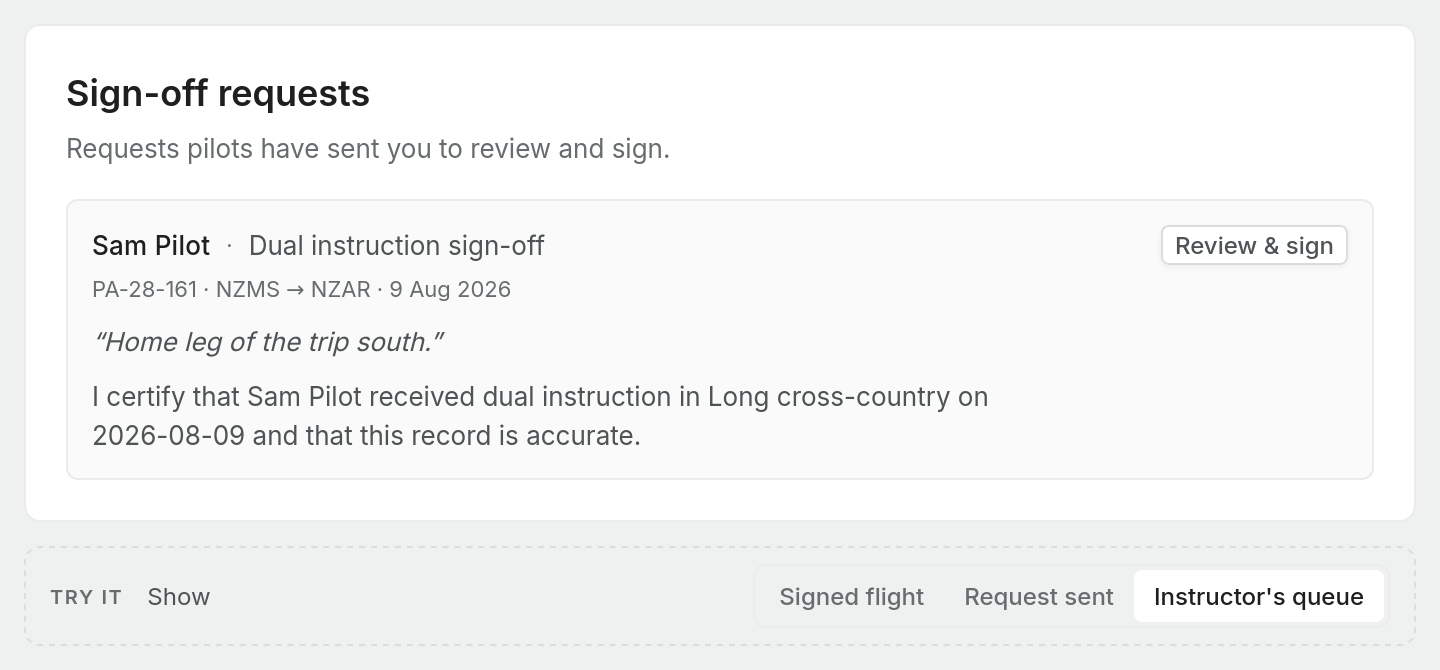
Pending sign-off lists your students' finalised flights that have not been signed yet, with the date, pilot, aircraft and route. Sign off opens the flight. In its Instructor section, add optional notes under Instructor sign-off and select Sign off. The flight then shows "Signed by" your name and the date.
Sign from your club's Instruct area
If you instruct at a club, open Instruct > Sign-offs in the club workspace. It lists the sign-off requests that students who share their training record with the club have sent to any of the club's instructors, so every instructor sees the same list. Use the views at the top to narrow it: All open, Sent to me, Expiring soon, Finalised, Returned and Expired or withdrawn. A request flagged Edited after request means the student changed the flight after asking.
Select a request to open it. You see the flight, the student's note and the flight's edit history. Only the instructor the request was sent to can act on it.
- Select Continue to sign. If the student left the type to you, choose the Endorsement type first.
- Type SIGN in the confirmation box.
- Select Sign endorsement.
If something on the flight needs fixing first, select Request correction, say What needs correcting and select Return to student. The flight is not changed. The student is notified and sees your note, and the request moves to Returned.
Knowledge deficiency requests appear in this list too, but you certify them from the certification queue, as described below.
Sign an endorsement directly on a flight
On a student's flight, expand Instructor. Under Endorsements, select Add endorsement, choose the type, fill in its fields and select Sign endorsement. You do not need a request from the student first.
Some endorsement types lock the flight when you sign. A signed flight can still be edited by the student, but doing so removes your signature and revokes the endorsements on it, so you will be asked to sign again.
Revoke an endorsement
If an endorsement was signed against the wrong flight, or should not stand, select Revoke on it. A reason is required. The endorsement stays in the record, struck through, with the date and your reason, and the student's book shows it as Revoked. Signed records are never edited: to correct one, revoke it and sign a new one.
If Pilot Lab holds your ratings and they do not cover what you signed, a warning appears on the endorsement with the rule reference. When Pilot Lab has no rating information for you, it says nothing, rather than a warning that would appear on almost every sign-off.
Certify knowledge deficiencies
Students can send you the open knowledge deficiencies from a theory exam to certify. You get a notification with a link to Certify knowledge deficiencies, which lists each deficiency with its syllabus reference and objective, and the student's written answers where they have written them ("No written answer yet" where they have not). Certify or decline each one.
A deficiency must be certified by a Category A or B flight instructor (CAR 61.21(a)(5)). Pilot Lab records your signing name and instructor grade from your signing credentials, so set your Instructor category before you certify.
Your responsibility
Pilot Lab records what you sign and makes it tamper-evident. It does not decide whether a student is competent, and it does not check that a sign-off meets every requirement of the rules. That judgement, and the responsibility for it, stay with you.