Import flights from a spreadsheet or another logbook app
Upload a CSV, the NZ Excel template or a LogTen Pro report, check what Pilot Lab read, then add the flights. Nothing already in your logbook is changed.
If your flying history already lives in a spreadsheet or another logbook app, the structured import brings it across in one go. Open Logbook > Import. The page offers two ways in side by side. Press Import a file on From a logbook app or spreadsheet, or Import a file or LogTen report in the bar at the bottom. Inside a book, Import a file instead in the sidebar goes to the same place. All of them open the Import a file page.
On a phone, the page first asks Is your export on this phone? An export file is usually on the computer you made it on, so Email me a link to finish on my computer sends a link to your email address to open there. If the file is on the phone, press I have the file on this phone to carry on.
Nothing is scanned here, so there are no pages to photograph or review one by one. A file is read whole and added whole, and nothing reaches your logbook until you add it:
- Choose a file or paste a link. Upload a file, or paste a LogTen Pro report link, then press Read file or Fetch report in the bar at the bottom.
- We read it. Pilot Lab reads every row, matches each column to a logbook field and lists anything it could not use.
- You check it, then add it. Press Add to logbook. The good rows become new entries. Existing entries are never touched.
The bar at the bottom of the page always says where the import stands and holds the one button for the next step.
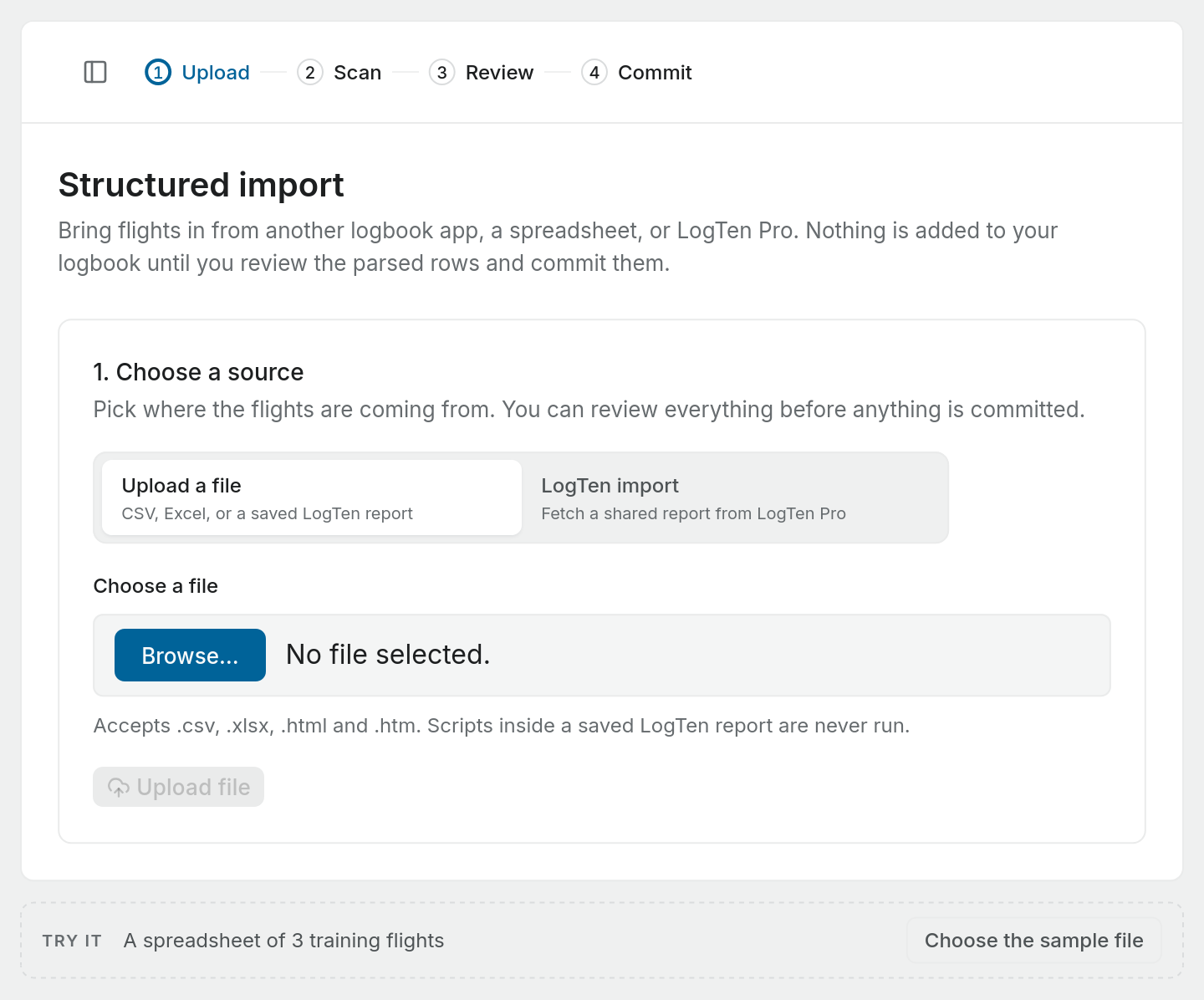
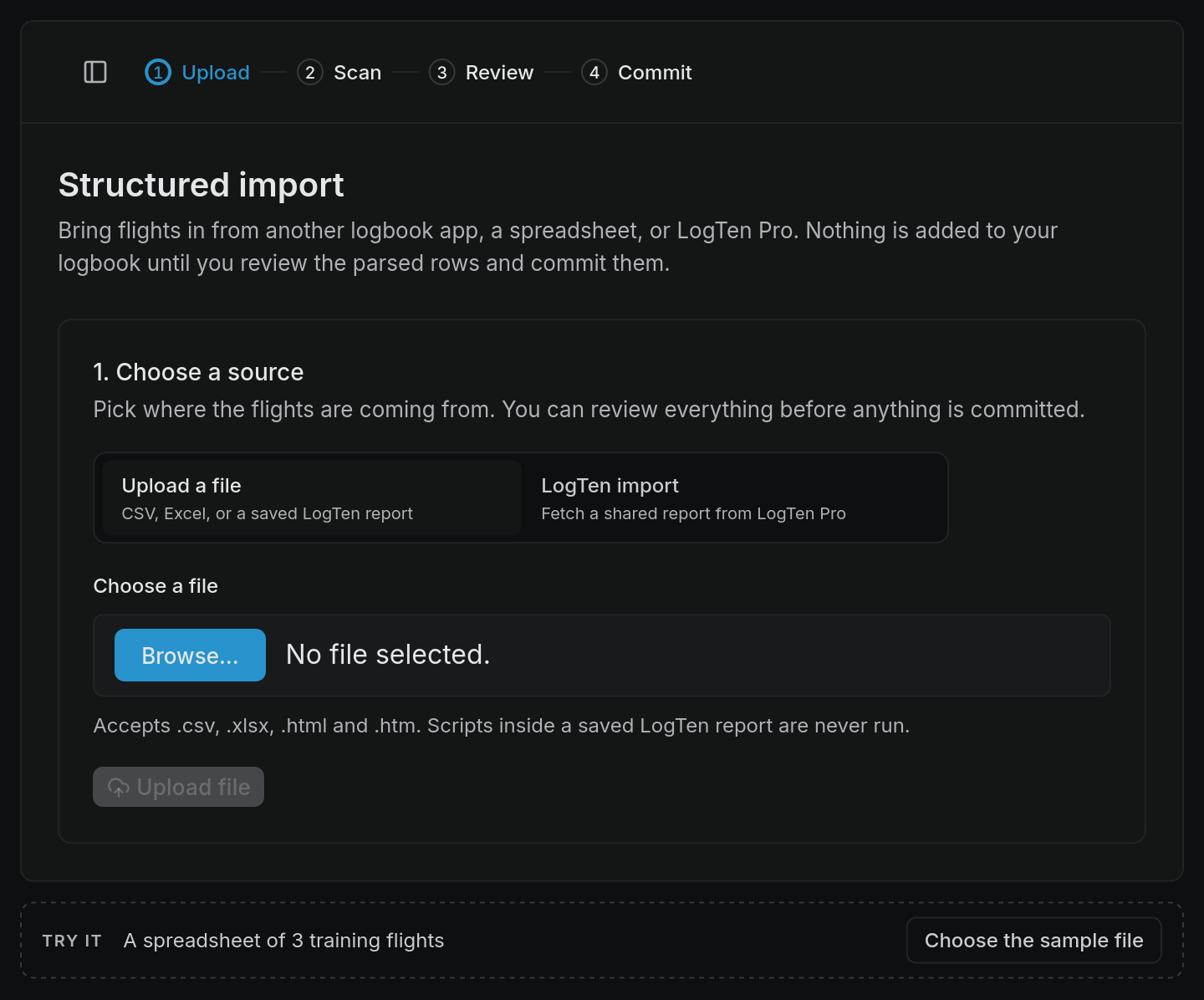
What you can upload
| Source | What to upload |
|---|---|
| A spreadsheet or another app | A .csv file with one flight per row and a header row |
| The Pilot Lab template | The Excel workbook (.xlsx) from the template link, filled in |
| LogTen Pro | A saved printable report (.html or .htm), or the report link Coradine emails you |
Exports from FLYLOG.io, ForeFlight, LogTen Pro, MyFlightbook, ZuluLog and Excel Pilot Logbook are recognised and read in their own layout. A CSV from anywhere else works too: you check how its columns are matched.
Files can be up to 10 MB and 5,000 rows. CSV files must be comma separated. Tab separated files are not read.
An Excel file is read either as the Pilot Lab template or, if Pilot Lab recognises its layout, as that logbook's own layout. Any other workbook will not map properly: save it from Excel as CSV (comma delimited) and upload that instead.
The Pilot Lab template
Under the file chooser, the import page has a download called Pilot Lab logbook template. It is an Excel workbook with two tabs:
- Flights, where you write one flight per row from row 5. The columns follow a paper logbook: date, aircraft type and registration, pilot in command, co-pilot or student, from, to and details of flight, then hours by engine class, day or night and role, instrument time and approaches, and take-offs and landings by day and night.
- Pilot Lab guide, which explains each column and shows two example flights.
Write hours as decimals, so 1.5 is 1 hour 30 minutes, and leave a cell empty rather than writing 0. From and To are required; for circuits, write the same aerodrome in both. Count your take-offs and landings so your recency can be worked out. Keep the headings on rows 2 to 4 as they are and keep both tabs, because that is how Pilot Lab recognises the file. The Total (calculated) column adds up your hours for you to check; Pilot Lab works out the total itself.
A workbook made from the older template, with the route written in Details of flight, still imports as it always did.
LogTen Pro
Choose LogTen import to paste a report link. In LogTen Pro, run the flight report you want and share it. Coradine emails you a link that looks like svcs.coradine.com/Reports/… and ends in .html. Paste it and press Fetch report. Pilot Lab fetches the report once and does not keep the link, because it contains your LogTen email address.
The printable report has fewer fields than your full LogTen record and no per-flight total time, so each flight's total is the sum of its printed time columns. Check the row warnings before you add them.
If the report carries hours from before its first flight, you will see Include Logbook Opening Balance. Leave it ticked to add those hours as a labelled opening balance rather than as made-up flights. An opening balance counts toward all-time totals only. It does not count toward recency or currency.
How columns are matched
Once the file is uploaded or the report is fetched, Pilot Lab reads it and matches each column header to a logbook field. A large logbook can take a few minutes. A progress bar shows how many rows have been read, and you can leave the page and come back.
For a CSV, the Columns section lists every column in your file: your header, a value from the file with how many rows have one, and where it goes. A badge counts columns not imported, and a warning names any column that has data but is going nowhere. If Pilot Lab did not recognise the export, it says so and asks you to check the matches.
To change where a column goes, pick a new choice in its list:
- a logbook field, such as Total time or Details of flight
- one of your own custom fields
- a new field in your logbook, as a number, text, yes or no, or a date
- Not imported, to leave it out of every flight
Then press Read the file again. The flights below are read again with your choices, so they always show what will be added. A new field is only created when you add the flights. Columns that belong to a recognised export are listed as read and cannot be changed, because that layout was checked against the app's own file.
An Excel file or a LogTen report arrives in logbook fields already. Where its columns were matched to something else, a Column mapping list shows the result, and unmapped columns are ignored.
Headers are matched loosely, ignoring case, spaces and hyphens. These are matched without any help:
| Logbook field | Headers that match |
|---|---|
| Date | Date |
| Departure and arrival | Departure, Dep, Arrival, Arr |
| Aircraft | Registration, Tail number, Aircraft type |
| Crew | Pilot in command, Copilot or student |
| Hours | Total time (or Total), PIC time, Dual time, Night time, IFR time |
| Landings | Landings day, Landings night |
| Notes | Remarks, Details of flight |
Dates can be written 2024-03-09, 2024/03/09, 09/03/2024 or 09.03.2024. A slashed date is read day first, the New Zealand way.
The timezone of a FLYLOG export
FLYLOG.io writes each date and time in the timezone picked when the file was exported, and the file does not say which. Pilot Lab reads it as UTC, FLYLOG's default, and shows an Export timezone card marked Assumed. If you exported in UTC, press It was UTC. If not, choose your timezone from the list and the file is read again in it. Each flight is dated where it departed, so a date can differ from the one in the file by a day.
Rows that need attention
Every CSV row needs a date, a departure, an arrival, and either times or a total time. A simulator or ground session needs no departure or arrival. A row that is missing one, or has something unreadable such as 31/02/2024, is listed under Rows that need attention with its row number. Those rows are left out when you add the rest. Fix them in your file and import them separately if you want them.
The card at the top counts Rows, Ready and Need attention, and the Flights to add table lists every flight as it will be saved, fifty at a time. Scroll it sideways to see all the columns. A Notes column says what Pilot Lab noticed about a flight.
If the aircraft type in a row states its engine class, for example PA28 (AMEL), the hours are filed under the class the row states. If that disagrees with how the aircraft is recorded, the flight's note says so.
Adding the flights
When at least one row is valid, press Add to logbook. The flights arrive with the status Imported, and aircraft you have not logged before are added for you from their registrations. Reading the file adds no aircraft. Only adding the flights does. The import keeps running if you leave the page, and a progress card shows when it is done.
When it finishes, Review imported flights takes you to your logbook entries, and Import another file starts again. If you mapped a column to a new field, the summary names the fields that were added.
The structured import does not look for flights that are already in your logbook. If you import a file twice, you get every flight twice. See Imported entries and duplicates for how to tidy up.
A spreadsheet import never uses your free scans. Scans only apply to photographed logbook pages.