Check and correct a scanned page
Review what Pilot Lab read from a logbook photo. Unsure values are underlined, you correct them in place, decide any duplicates, then import the page.
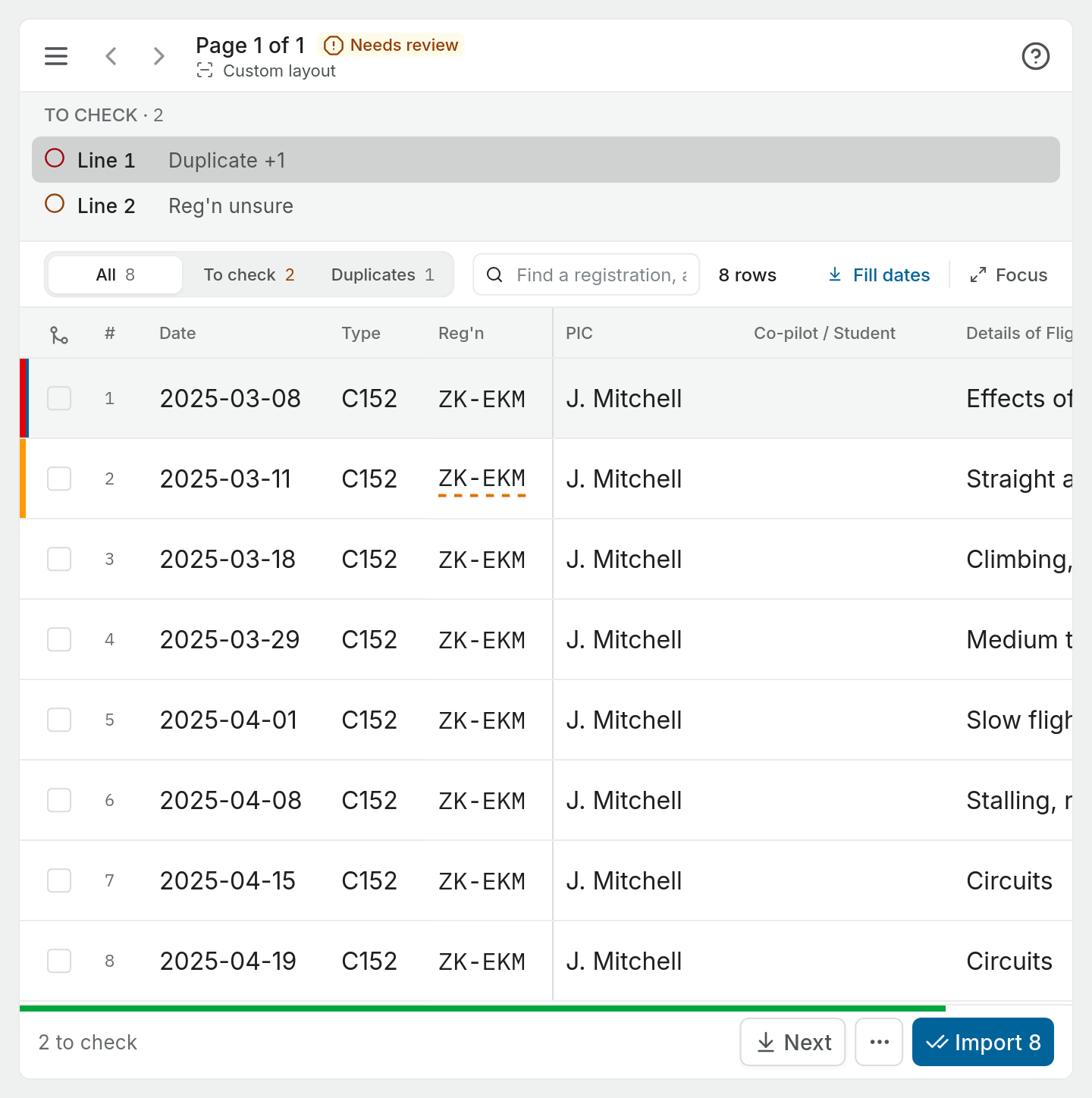
When a scanned page has been read, press Review on it. The review shows every line Pilot Lab read, laid out in the same columns as your paper logbook, with the page photo above or beside it. Your job is to check the lines it was not sure about, then import the page.
Nothing is added to your logbook until you press Import.
Reading the table
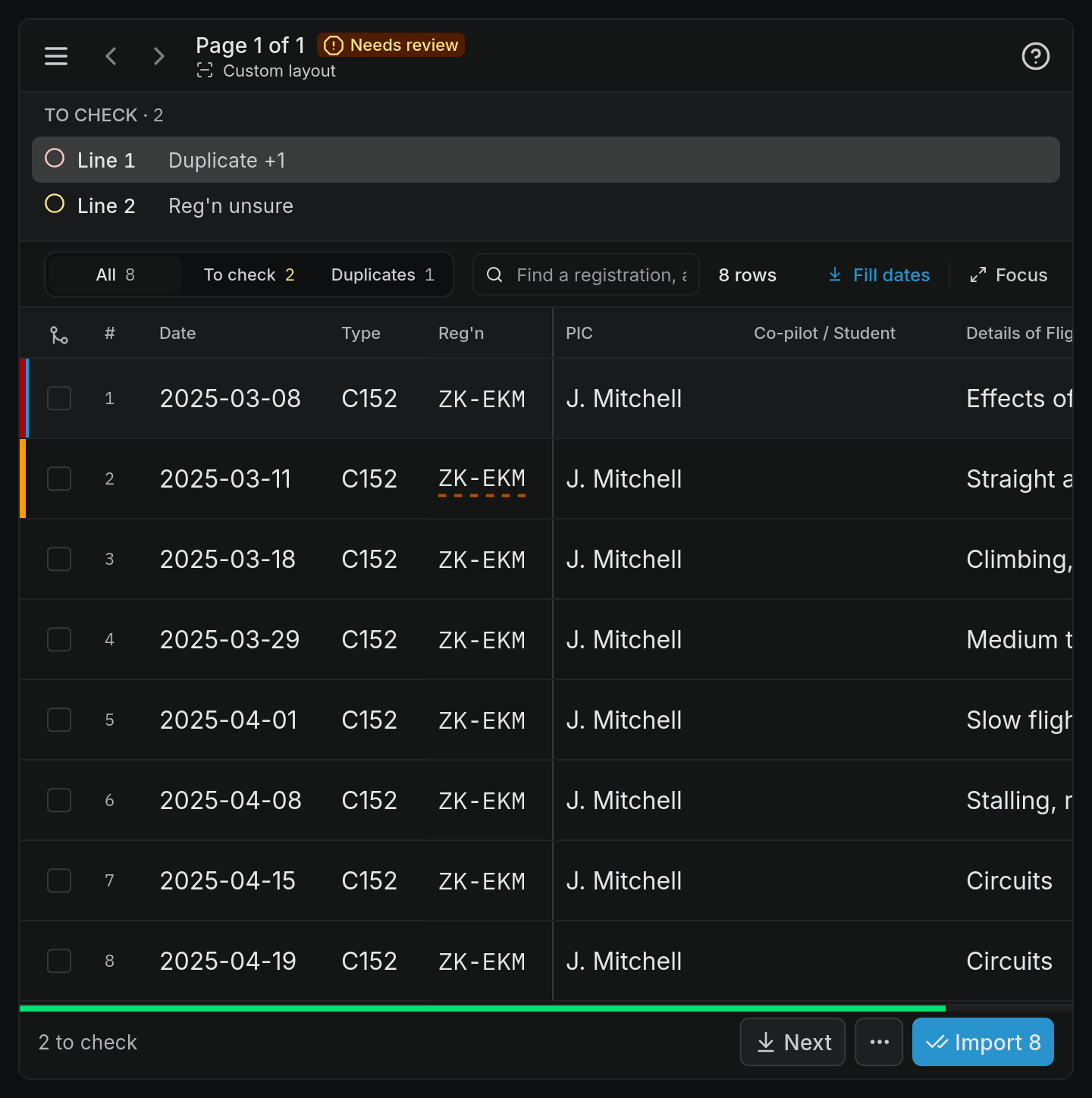
Each row is one line of your logbook. Date, type and registration stay pinned on the left as you scroll across the hours.
The Check column says, in words, what a line needs:
| Check | What it means |
|---|---|
| (blank) | Nothing to check. The reader was confident. |
| Unsure read or 2 unsure | The reader was not confident of one or more important values, such as the date, registration or hours. Those values have a dashed underline. |
| Hours don't add up | The line's hours do not match its total, for example day dual plus day PIC is more than Total. |
| Needs a fix | The line cannot be imported as it is. Where the reason is known it is named instead, for example No date read, No aircraft, No role or No flight time. |
| Engine class? | Nobody has recorded whether the line's aircraft is single or multi-engine, so its hours are not filed under either. |
| Filed as written | The aircraft type on the line states an engine class, such as PA28 (AMEL), that differs from the aircraft's record. Its hours are filed as the line states. |
| Duplicate | The line matches a flight already in your logbook. The whole row is tinted red. |
| Skipping | You chose not to import this line. |
A line can need more than one thing. The Check column shows the most important and a count of the rest. A small coloured mark at the start of the row says the same: red for a duplicate, amber for anything else.
Use the filter above the table to narrow it: All, To check or Duplicates, each with a count. On a page with lines to add up, Totals also appears, to find the lines that could explain a total that is off. The search box finds a registration, aerodrome or name.
Every read page with lines also shows its totals. Where the page's printed totals were read, they are compared with what the lines add up to. Where they could not be, for example because the totals row was not read, Page totals still shows what the lines add up to in each column and says why it was not checked. That never holds up the import.
Correcting a value
Click a value, or select it and press Enter, to edit it in place.
- Enter saves and stays on the value.
- Tab saves and moves to the next column.
- Escape cancels.
A value you changed gets a blue edge and a pencil mark, and hovering it shows what was originally read ("was ZK-ETN"). Once you correct an unsure value it is no longer unsure. Registrations are looked up as you type, and the pilot in command and co-pilot columns suggest names already in the book.
A date can be typed day first, for example 14/3/25. If Pilot Lab cannot read a typed date, it is not saved and you are told.
If a line's correction is refused when it saves, the line says why in plain words, for example "Hours can have at most two decimal places." Fix it before importing: until then the import button reads Fix 1 unsaved line, and nothing on the page is imported.
Fill dates fills each empty date with the last date written above it, which helps when a logbook only writes the date once for several flights on the same day.
Opening a line
Click the arrow at the end of a row, or its line number, to open the line underneath. Clicking a value edits it instead. It explains each check in full and gives you the choices:
- Already in your logbook: choose Skip this line or Import it anyway.
- Hours don't add up: shows the sum, for example "Day dual + Day PIC = 1.5, but Total is 1.1", sometimes with a one-click fix such as setting the total.
- Single or multi-engine?: answer Single-engine or Multi-engine. The answer is recorded for that aircraft, so you are not asked again on its other lines. For an aircraft Pilot Lab does not know, Add as single-engine or Add as multi-engine adds it.
- Filed as the line states: if the type was read wrong, correct it. Line is right keeps it as written.
- Unsure read: lists the values the reader was unsure of, with Show photo to see that line of the page.
Line is right says the line is correct as it stands and clears its unsure reads and hours check. Skip line leaves it out of the import (Don't skip brings it back). In the ⋯ menu you can also split one line into two, or merge two lines that were read as one.
Keyboard shortcuts
| Key | Does |
|---|---|
| N | Next line to check |
| J / K | Move down and up |
| A | Line is right |
| R | Skip the line |
Importing the page
The bar at the bottom counts the page, for example "6 flights · 2 to check", and the main button says what will happen: Import 6 · 2 unchecked or, once everything is checked, Import 6 flights. If some lines need a fix first, the button counts them too, for example Import 6 · 1 to fix.
You can import with lines still unchecked. Lines that need a fix are left on the page and the rest are imported. The page then shows how many were imported and how many are left, for example "3 imported · 1 to fix", and stays under Review until you deal with them. You cannot import while a duplicate is undecided: Pilot Lab jumps to it and asks you to skip it or import it anyway.
After importing, Pilot Lab moves on to the next page to review, with a note saying how many flights were added and Undo. Imported flights have the status Imported. See Imported entries and duplicates.
To import every clean line in a book without opening each page, use Import the clean lines on the book. See Scan a paper logbook.
Your corrections save as you go, so you can leave a page half checked and come back to it.
Undoing a page
Undo import in the ⋯ menu removes exactly the flights that page created and puts the page back into review with your corrections intact. It is only offered while it is safe. For example, it is not offered once:
- any of those flights has been edited, finalised or deleted,
- something you added (a note, an expense, a training record) is attached to one of them.
In that case, change or delete the flights from your logbook instead.
Page setup
If the columns on a page were not matched to your logbook's layout, the page opens on a setup step first, where you match them. You can come back to it later with Match columns again in the ⋯ menu. If the reader got the year wrong, change it from the year shown beside the page title.
If a page is the wrong way up, you can turn it from the whole page photo. Turning a page that has been read discards that reading, including your corrections on it, and reads the page again. Pilot Lab asks first, and says whether that uses a scan.