Write a note
Create a note for a debrief, a route plan or study, link it to the flights it belongs to, and choose who can see it.
Notes are for anything you want to keep alongside your logbook: a debrief after a lesson, the plan for a cross-country, or revision notes for an exam. They live under Notes & Documents in the sidebar, next to your documents.
Create a note
- Open Notes and choose New note in the sidebar.
- Give the note a title. It starts as "Untitled" if you leave it.
- Choose its Kind. Text is for writing that flows top to bottom, and is selected unless you started the note somewhere that asks for something else. Drawing is one full screen canvas to sketch, diagram and write on. The kind is set when you create the note, and the note keeps it.
- Optionally open Link to flights and tick the flights this note is about. The list shows your logbook entries, newest first, by route, date and registration.
- Choose Create note. The note opens in the editor.
You can also start a note from inside a flight. See Add notes to a flight.
Write in the editor
A Text note opens in a full rich text editor. Type your title in the large heading at the top, then start writing where it says Write your note.... The toolbar gives you headings, lists, checklists, quotes, code, tables and images, and you can paste in text from elsewhere.
The panel on the right has three tabs:
- Outline lists the headings in your note, so you can jump around a long one.
- Info shows word, character and paragraph counts, who created and last edited the note, the notes that link to it, the version history and the note's Labels.
- Assets lists the images you have added.
Notes save as you type. There is no save button.
Link to notes, flights and more
Type @ in a note to link something into your writing. You can search for another note, a flight, an aircraft, an instructor or an aerodrome, and the link appears as a chip. If no note has the title you typed, Create note makes one and links it straight away. A flight you mention also appears under the note's Linked flights.
The Info tab shows two lists for the note you are reading:
- Linked from lists the notes that link to this one, with the sentence around each link.
- Unlinked lists notes that name this note in plain text without linking it. Choose Link on one to turn that mention into a link.
Type / and choose Live list to add a block that always lists the notes mentioning a note, flight or other item you pick.
Drawing notes
A Drawing note opens full screen on a canvas, on a computer, tablet or phone. Sketch a circuit, mark up a diagram or write anywhere on it. It saves as you go, like a Text note.
Comments
Select some text and use the comment button that appears to leave an inline comment on it. This is most useful in a shared workspace, for example when an instructor reviews your debrief.
The notes list
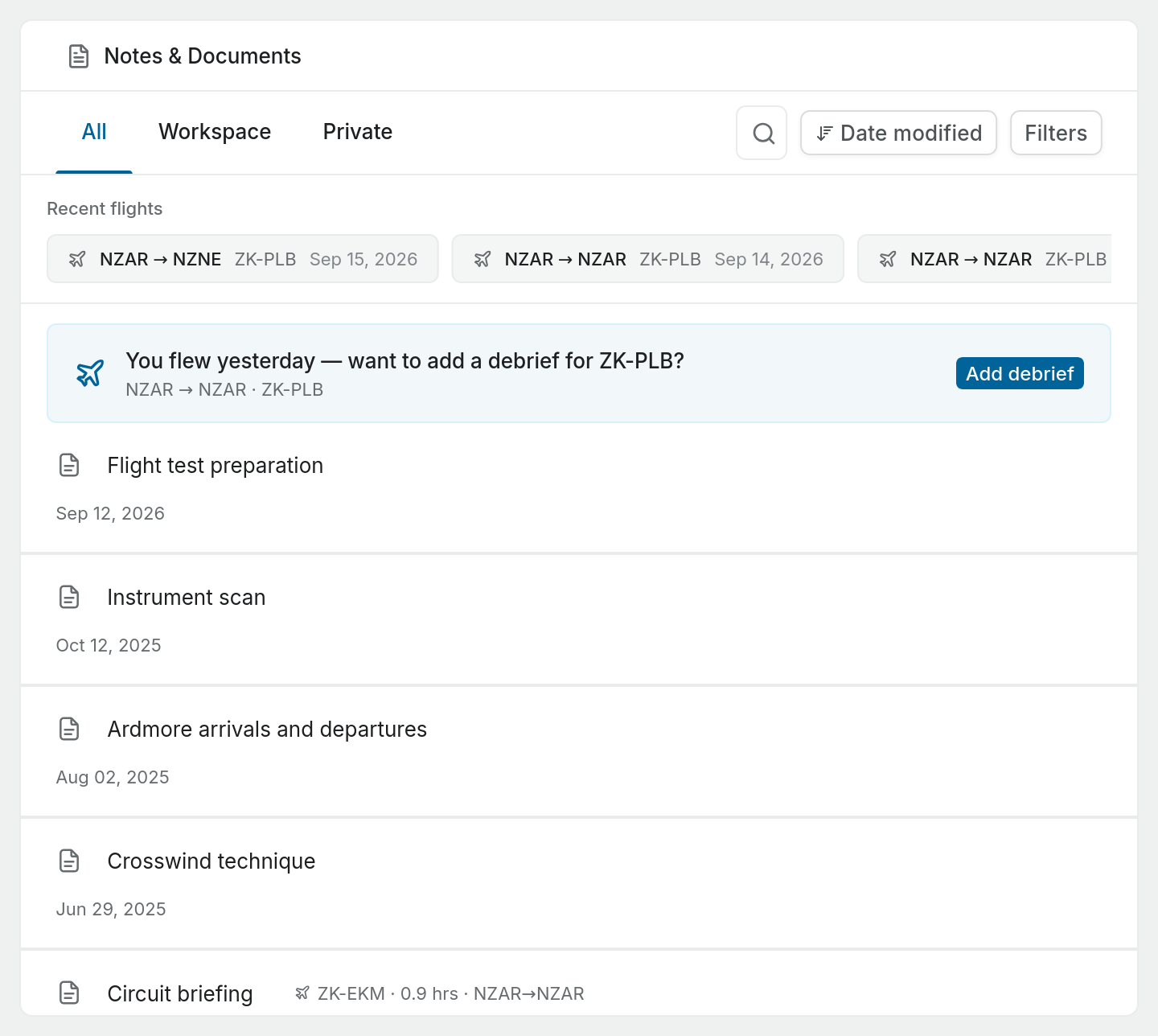
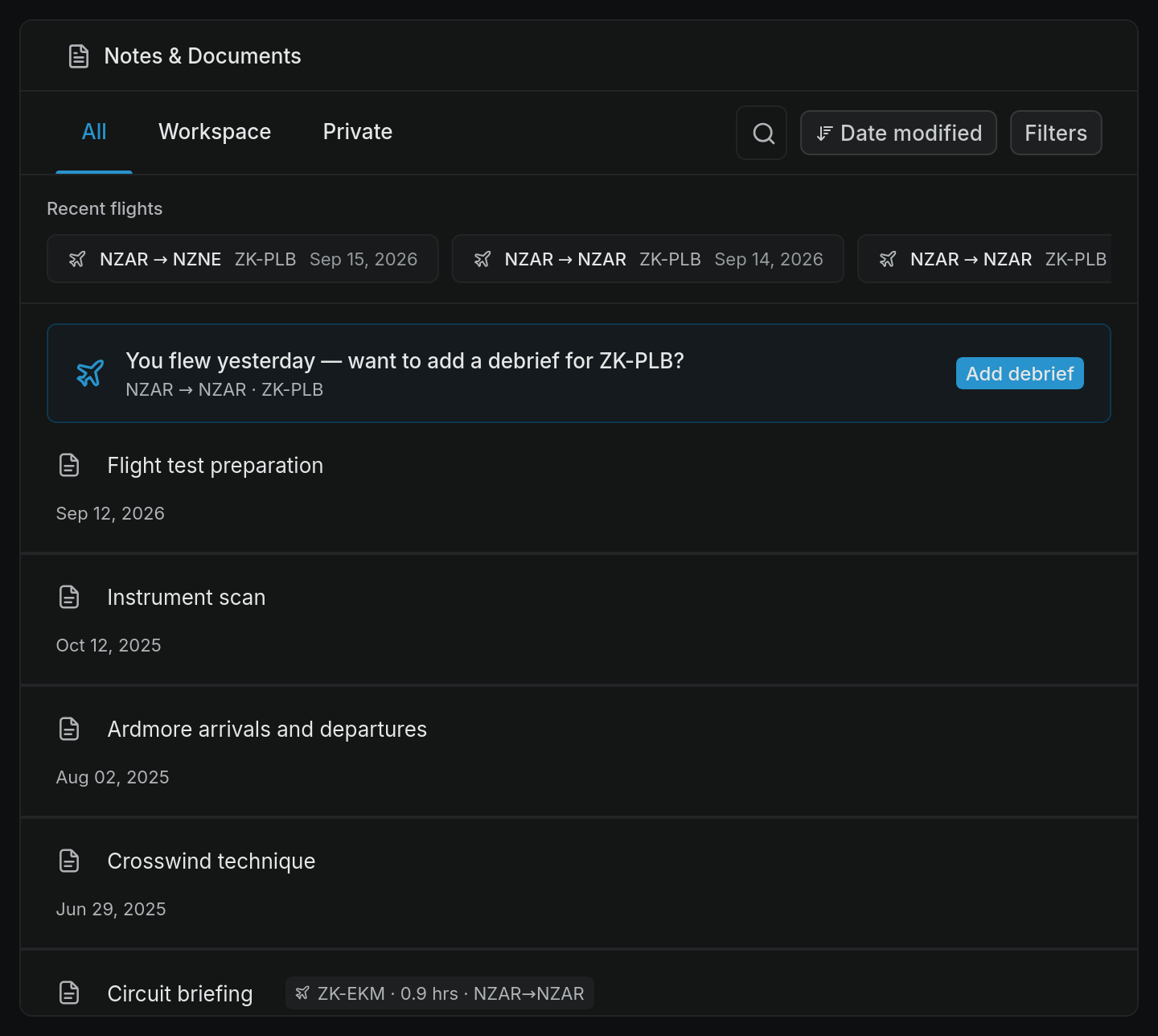
The list shows every note you can see, most recently changed first. Each row can carry:
- an icon for its kind, Text or Drawing,
- a flight chip with the registration, hours and route of the first linked flight,
- how many notes link to it, when any do,
- the date it was last updated, and up to two labels.
Across the top, Recent flights shows your last four logbook entries. Select one to open that flight. If you flew yesterday, a prompt offers to Add debrief.
Use Search to find a note by title. Date modified changes the sort (name, date created or date modified, ascending or descending). Filters narrows the list by favourites, created date, who created it, or label.
Private and workspace notes
A new note is Private: only you can see it. To share it with everyone in the workspace, open the note's menu (the three dots at the top right) and choose Make workspace. Choose Make private to take it back.
In a personal workspace you are usually the only member, so the difference only matters once you invite someone or work in a club workspace.
The tabs above the list filter by this setting: All, Workspace or Private.
Other things you can do with a note
From the note's menu:
- Copy markdown copies the whole note as Markdown. Text notes only.
- Make a copy duplicates it, including its labels and linked flights.
- Export downloads a Text note as a PDF or Markdown file. A Drawing note has Export as PNG and Export as PDF instead.
- Version history opens the Info tab.
- Compact note width and Sticky toolbar change how the editor looks for you. Text notes only.
- Delete removes the note.
A note never changes your logbook. Linking a note to a flight does not alter the entry, its times or your totals.