Add a flight to your logbook
Press Add flight, fill in the side panel, and Pilot Lab works out total, day, night and IFR time for you. Everything saves as you type.
Every flight in Pilot Lab is a logbook entry. You add one from Logbook > Entries (or the dashboard) with the Add flight button. Pilot Lab creates a draft straight away and opens it in a side panel next to your entries. There is no separate "save" step: each field saves the moment you change it, and the panel footer says so ("Changes save as you make them.").
If you close a brand new draft without filling anything in, it is removed, so an accidental click doesn't leave an empty entry behind.
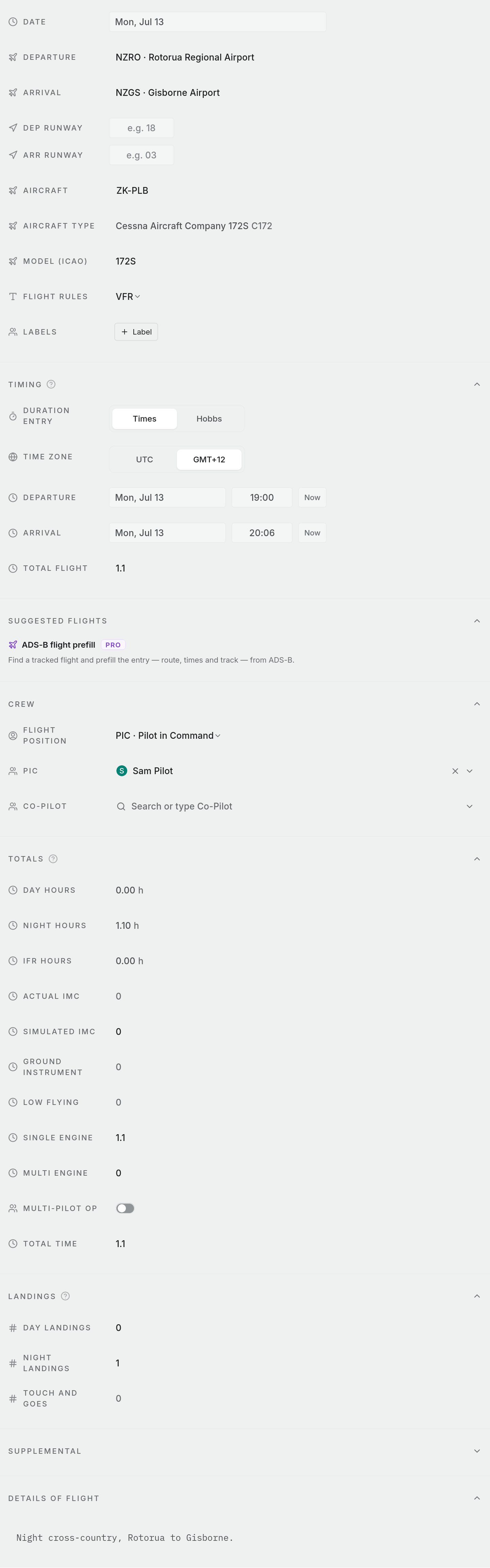
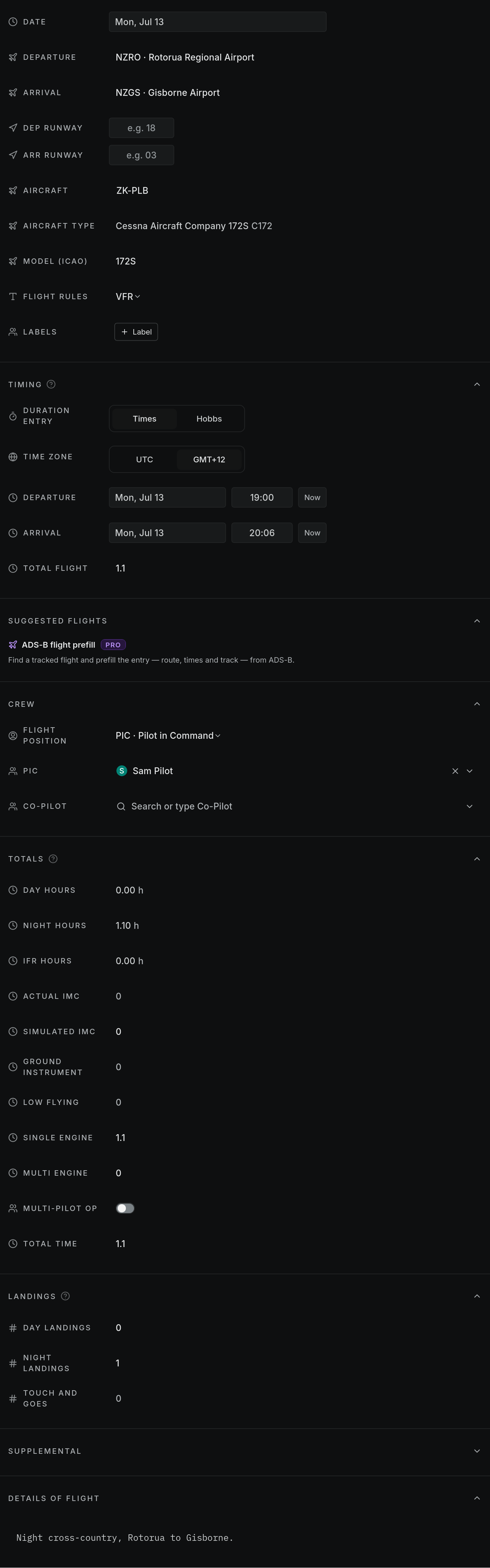
The fields, top to bottom
Date. The day of the flight.
DEPARTURE and ARRIVAL. Start typing an aerodrome code or name, for example NZAR or Ardmore, and pick from the list. Codes are stored in capitals and shown as "code · name".
Aircraft. Type a registration. Pilot Lab searches the aircraft it already knows, with the ones you fly most often first. If there is no match, press Enter and the aircraft is added for you. NZ registrations can be typed with or without the dash, or as just the three letters (EQT finds ZK-EQT). See Aircraft in your logbook.
Flight rules. VFR, IFR or SVFR (Special VFR). VFR is the default.
Timing
Duration entry chooses how you record the length of the flight:
- Times: enter a departure and an arrival time. Total flight is arrival minus departure.
- Hobbs: enter Hobbs start and end readings. Total flight is the difference.
Time zone switches the time boxes between UTC and your local time. Time boxes accept 0830, 830 or 8:30, and Now fills in the current time.
Block times (off and on) appear if you fly commercially or for an airline, or if the flight already has them. With both set, Total flight follows them instead of take-off and landing.
Rotor start and stop times appear for a rotorcraft, or if the flight already has them. Whether the total follows them depends on your workspace's rules, and the row says "Total flight follows these rotor times." when it does.
Total flight fills in by itself. If you want to log a different figure, type it in. Your number wins and the times are left as they are. If the arrival is at or before the departure, you'll see "Departure and arrival are out of order." under the fields. Times like that, or a total of a day or more, are not saved: a notice explains why and keeps what you typed on screen until you correct it, or press Put back what is saved.
Crew
Flight position is the most important choice on the form, because it decides which columns the flight's time counts in:
| Flight position | Time counts as |
|---|---|
| PIC · Pilot in Command | PIC |
| PIC U/S · Under supervision | Command practice. It is not PIC time |
| SPIC · Student PIC (countersign required) | PIC, and needs a countersignature before finalising |
| SIC · Co-Pilot | SIC |
| Student · Dual received | Dual received |
| Instructor · Dual given | Dual given |
| Solo | PIC, plus solo time |
| Instructor | PIC, plus instructor time |
Choose PIC U/S for a sector you flew as co-pilot doing the pilot in command's duties under a supervising captain. The hours go in the Command Practice column only. The pilot in command of that flight is the captain, so their name stays in the PIC seat and yours is not put there.
If only part of a flight was command practice, keep the position you flew the rest in and enter the command practice hours under Totals. See A flight split between two capacities.
If you change a flight to PIC or Solo, you take the PIC seat. If another pilot was recorded there, Pilot Lab tells you whose name it removed and gives you an Undo.
The full rules are in How flight time is split into columns.
PIC and the second seat (Co-Pilot, or Student for dual flights) take a workspace member or any name you type.
If you fly commercially or for an airline, Pilot flying records whether you were pilot flying or pilot monitoring. A flight you were pilot monitoring gets no automatic landing.
If you have set up flying profiles (under Profile > Preferences), a new draft starts with your default profile's flight position, and you can switch profile from the Profile chip at the top of the panel while the entry is a draft.
Totals
Day hours, Night hours and IFR hours are worked out by Pilot Lab and shown read-only. On an IFR flight the IFR figure is shown as IFR portion, and you can type your own. Night is time after evening civil twilight at the departure aerodrome, so a flight that lands after dusk splits automatically. Single engine and Multi engine follow the aircraft.
The instrument and command fields are for you to fill in: Actual IMC, Simulated IMC, Ground instrument and Low flying. Turn on Multi-pilot op for multi-crew flights. A number you type into any of these always takes priority over a calculated one.
PIC hours, Co-pilot hours, Dual received hours and Command practice hours show what your flight position gives each column. You only need to type into them for a flight split between capacities, and together they must add up to the total. If they don't, the figures you typed are kept on screen, marked as not saved yet, and saved together once the rest is in.
Landings, approaches and the rest
- Landings: day landings, night landings and touch and goes. If you leave both landing counts empty, Pilot Lab records one landing, day or night depending on your arrival time. It doesn't if you set Pilot flying to pilot monitoring.
- Approaches appears on IFR flights. Add each approach with its aerodrome, runway, type (ILS, LOC, RNAV, VOR, NDB, circling, visual, PAR / SRA) and count. A new approach starts at your arrival aerodrome.
- Supplemental holds optional fields such as flight purpose, training exercise, callsign and review or check details. Which of them show is set under Settings > Logbook settings, in Entry field requirements.
- Custom fields shows any fields your workspace has added. See Custom fields.
- Details of Flight is your remarks box.
Suggested flights
This is a Pro feature. With Pro, once you've entered a date and either a registration or a Flight number, Suggested flights looks up tracked flights. Open one and press Fill flight log to fill in the aerodromes, times and total, then check them. If you picked the wrong one, choose another. Suggested flights aren't offered on a final entry.
What you need before you can finalise
A draft can be incomplete. To finalise it you need a date, both aerodromes, a flight position, flight rules, an aircraft, and some way of getting a duration: departure and arrival times, block times, rotor times, Hobbs readings or a total. Fields that are still missing are flagged in amber. See Draft and final entries.
Every hours figure, in the form, the tables and the totals, follows your Duration format preference under Profile > Preferences: decimal to one place (1.8), decimal to two places (1.75) or H:mm (1:45). Decimal to one place is the default. You can type hours either way, as 1.5 or 1:30.