Set up your logbook
The short set-up steps Pilot Lab shows after you sign up, what each one changes, and which you can skip.
The first time you sign in, Pilot Lab asks a few questions before it opens your logbook. It takes a couple of minutes. A bar across the top shows how far through you are, and the arrow at the top left takes you back a step. On a wide screen, a preview on the right changes as you answer.
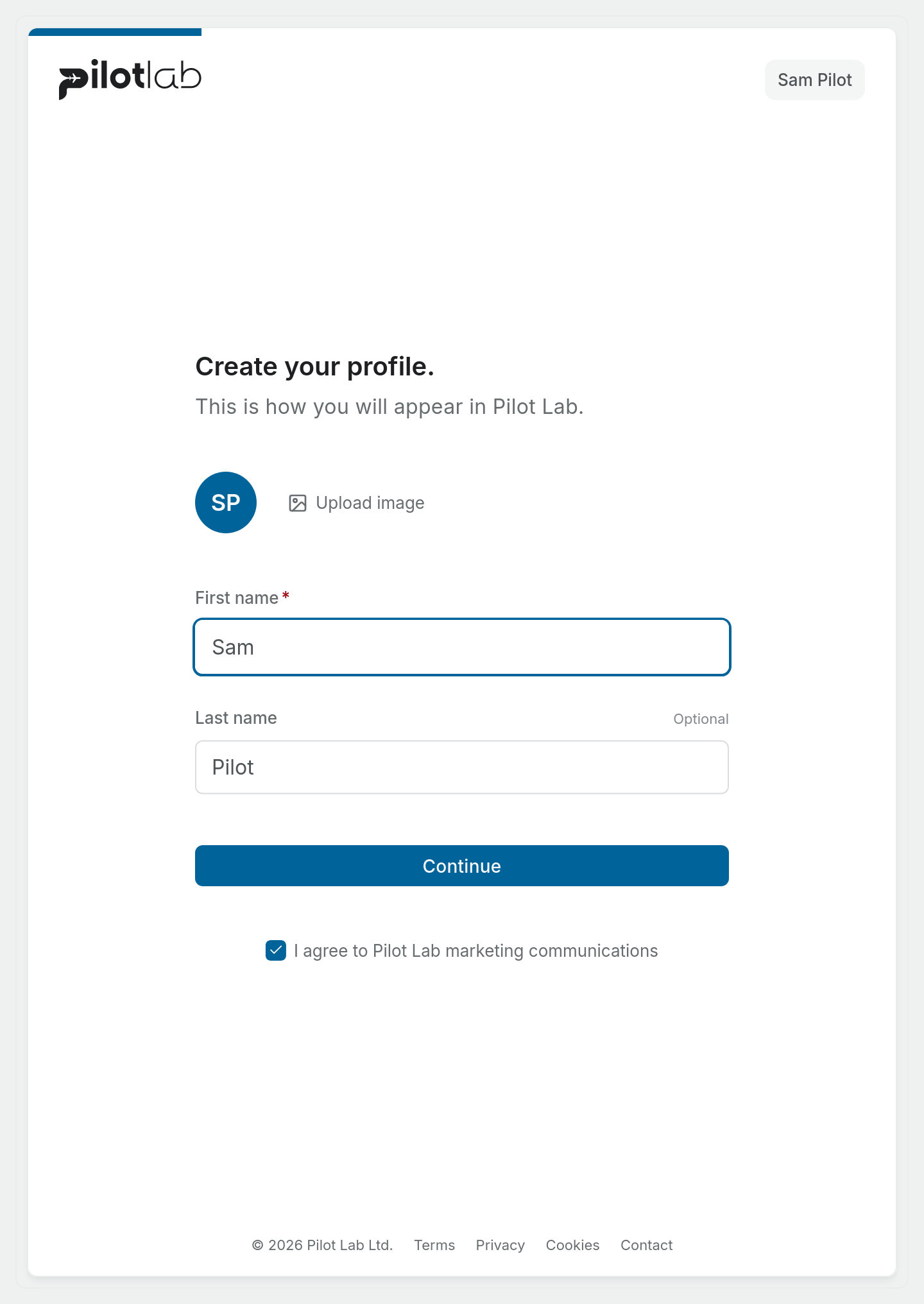
1. Create your profile
Enter your First name (required) and Last name (optional), and upload a photo if you like. Your name is how Pilot Lab greets you and how you appear to anyone you share a workspace with, such as a flying club. It also appears on logbook pages you export, so use your name as it appears on your licence.
Under the button there's a tick box, I agree to Pilot Lab marketing communications. It starts ticked. Untick it if you don't want product emails. It doesn't affect sign-in codes or account emails.
2. Set your flight details
This step picks the rules your logbook is calculated under.
- Country is required. At the moment the only choice is New Zealand, which sets your logbook to the NZ CAA rules. See Which countries and regulators are supported? if you fly somewhere else.
- Home airport is optional. Search by code or name (for example
NZARor "Ardmore"). If you fly from a private strip that isn't in the list, type its 3 or 4 character code and choose Use "…". - What kind of flying do you do? is optional: Private, Student, Instructor, Commercial or Airline. It decides which optional buttons and fields an entry offers, such as block times for commercial and airline pilots and a Return leg button for airline pilots. It never changes what a flight counts toward. You can change it later in your profile's Preferences, as Type of flying.
There isn't a place in Settings to edit your home airport after set-up. It doesn't change how any flight or total is calculated, so it's safe to leave blank. If you need it changed, contact support.
3. Your licence and goal
Two optional questions:
- What you hold now: Student, RPL, PPL, CPL or ATPL.
- What you're working toward: a syllabus for your goal, such as PPL (A), CPL (A) or IR. The list reorders from your first answer. A PPL holder sees CPL (A) and IR first, and same-level licences in another aircraft category are shown underneath as conversions.
Pick a goal and Pilot Lab tracks your progress against it, counting your flights toward the hours requirements as you log them. Select Skip for now if you'd rather not say. You can add your licence later under your profile's Licences, and choose or change a syllabus under Settings ▸ Progression. (If your pilot type in step 5 is Private or Commercial & airline, Progression is hidden from Settings until you show training features again.) There's more in Training and licences.
4. What will you use Pilot Lab for?
Choose everything that fits: Private flying, Training for a licence, Commercial or airline, Instructing, Running a club or school. You need at least one to continue.
This answer sets your pilot type, which the next step shows you. If you pick more than one, Pilot Lab uses the most demanding logbook as your main one.
5. Check your pilot type
Pilot Lab shows what it has set up for your pilot type: Student, Private, Commercial & airline or Instructor. Each type changes the default logbook columns, the rows in your totals and the board on your home page. For Private and Commercial & airline it also hides training features (exams, syllabus progress and lesson debriefs) from the menus. Their pages still open.
Each change has a switch. Turn off anything you'd rather not have, then select Looks right. To pick a different type, select Change pilot type. Nothing here is locked in: you can change it any time in your profile's Preferences, under How you fly.
6. How did you hear about us?
The last question, and it's optional. Pick an answer and Continue, or select Skip.
When you're done
Pilot Lab opens Home. While your logbook is empty, Home usually offers three ways in: Bring your logbook in, Scan your paper logbook and Add one flight. Next, have a look at Find your way around.
If you close the browser part-way through, Pilot Lab brings you back to set-up the next time you sign in, with the answers you'd already saved filled in.
Changing your answers later
For the profile settings, see Change your profile and preferences. Profile settings open from your account menu (your picture or initials at the top right), for example through Preferences. Workspace Settings is in the workspace menu at the top of the sidebar.
| Answer | Where to change it |
|---|---|
| Name and photo | Profile settings ▸ Profile |
| Type of flying | Profile settings ▸ Preferences |
| Pilot type | Profile settings ▸ Preferences ▸ How you fly |
| Licence held | Profile settings ▸ Licences |
| Syllabus you're working toward | Settings ▸ Progression |
| Logbook rules | Settings ▸ Logbook settings |
| Marketing emails | The unsubscribe link in any marketing email |