Create your account and sign in
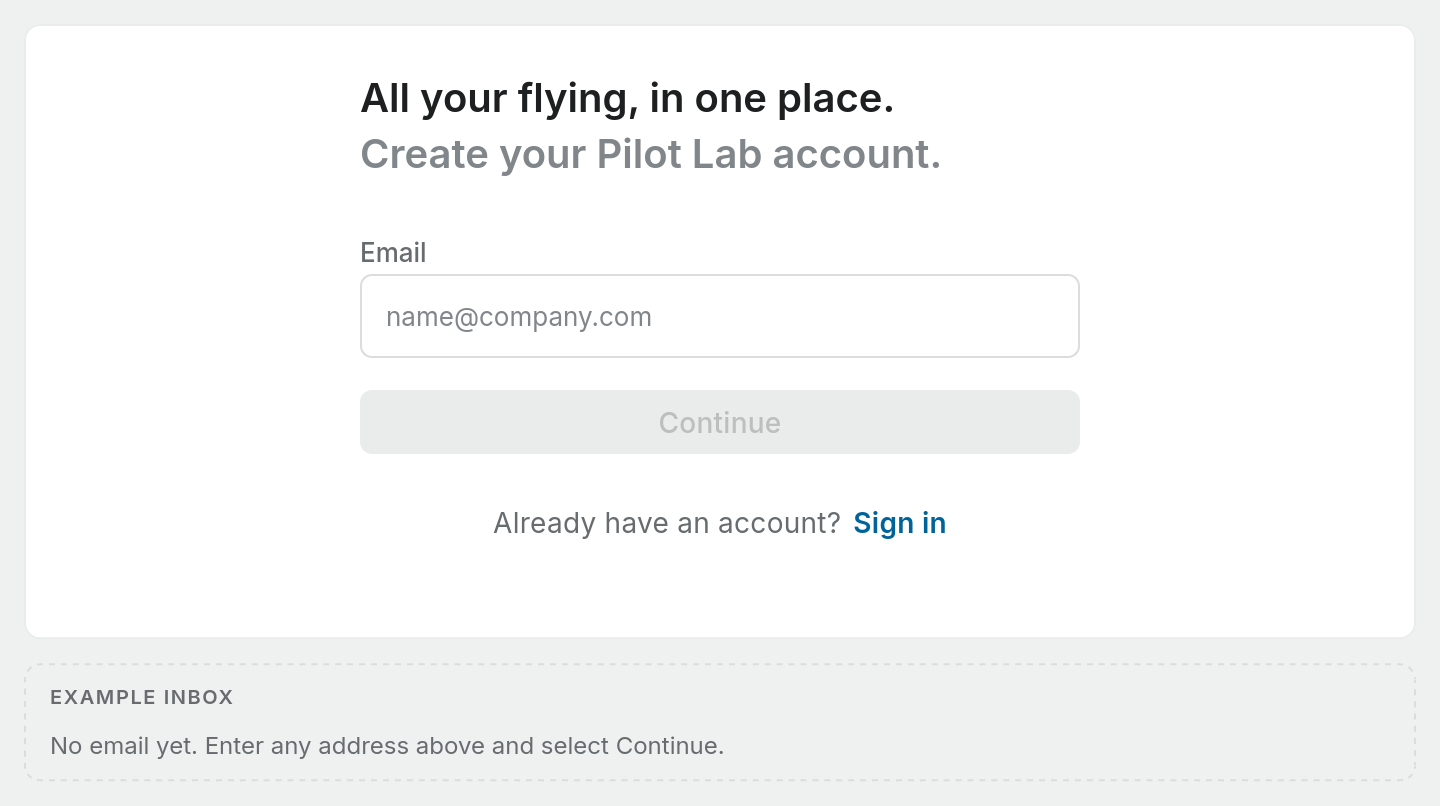
Sign up with your email address and a six-digit code. No password needed, though you can set one later.
Pilot Lab signs you in with your email address. You don't have to choose a password: each time you sign in, we email you a six-digit code and you type it in. The same form handles signing up and signing in, so if you're not sure whether you already have an account, just enter your email and carry on.
Sign up
- Go to app.pilotlab.app and choose Sign up under the form (or open the sign-up link you were sent).
- Enter your email address and select Continue.
- Check your inbox for an email with the subject "Your unique Pilot Lab login code is" followed by six digits.
- Type or paste the code into Unique code and select Continue.
That's it. Your account is created and Pilot Lab takes you into a short set-up, covered in Set up your logbook.
Every new account gets its own personal logbook workspace straight away, and that workspace starts on a Pro trial. You don't need to enter any payment details for the trial. See Free and Pro for what the trial includes and what happens when it ends.
Sign in next time
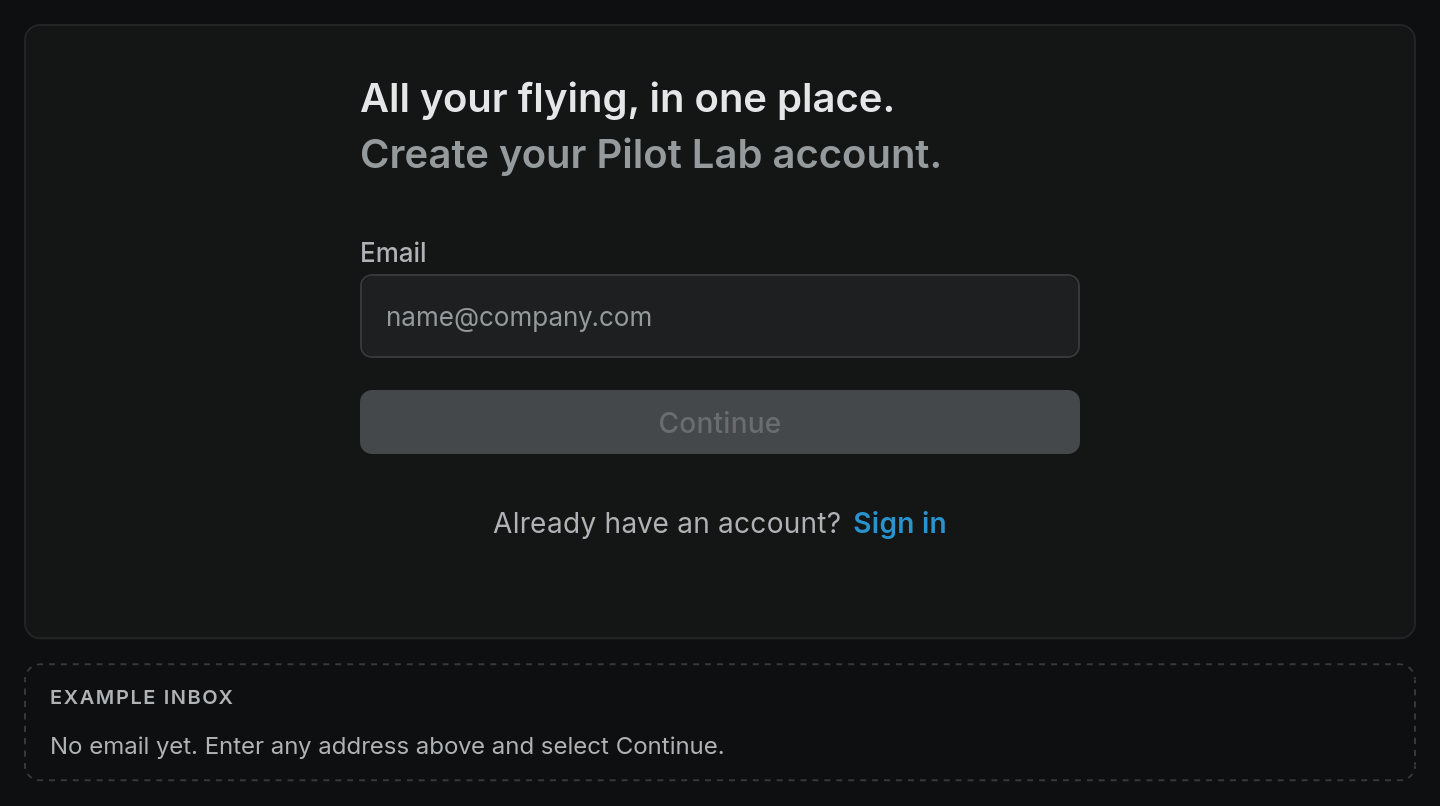
Signing in works the same way. Enter your email, select Continue, and type the new code from your inbox. If you enter the email of an account that doesn't exist yet, the form quietly switches to sign-up for you, and the other way round.
A few things worth knowing about the code:
- It is valid for 10 minutes.
- Only the most recent code works. If you press Resend, the earlier code stops working, so use the newest email.
- After you press Resend there is a short wait (a few seconds) before you can ask again.
- Asking for a new code several times in a row will lock code requests for about ten minutes. If you see "Expired magic code. Please try again.", wait ten minutes and start over.
If the code doesn't arrive, see My sign-in code hasn't arrived.
Use a password instead
If you'd rather type a password, you can set one after you've signed in. Open your account menu (your picture or initials at the top right), choose Settings, then Security. Once a password is set, signing in asks for it instead of sending a code. The password step still offers Sign in with unique code if you forget it, and Forgot your password? sends a reset email.
Other ways to sign in
Depending on how the sign-in page is set up when you visit, you may also see a button such as Sign in with Google above the email field. If it's there, it signs you in with that account's email address. If it isn't, use your email and a code as above.
If a flying club invited you, use the link in the invitation email. The sign-in page then shows the club's name, and signing in adds you to the club's workspace as well as giving you your own personal logbook.
Signing out
Open your account menu at the top right and choose Sign out. Your logbook stays exactly as you left it.